Face Screen
TIAGo Pro's face is a touch screen connected to the robot's PC. The face screen is used by default for displaying the robot's face. Tt can also be used for other purposes, such as displaying any information or visual feedback.
The default face
The default face is provided by the expressive_eyes module, which is enabled by default. This module displays a simple face with eyes that can express different emotions. The face can be customized in two ways, changing the expression or changing the gaze direction of the eyes.
Modify the face expression
To change the face expression, the folling command can be used to publish to the corresponding topic:
ros2 topic pub -1 /robot_face/expression hri_msgs/msg/Expression "expression: 'happy'"
Below you can find all the available expressions:
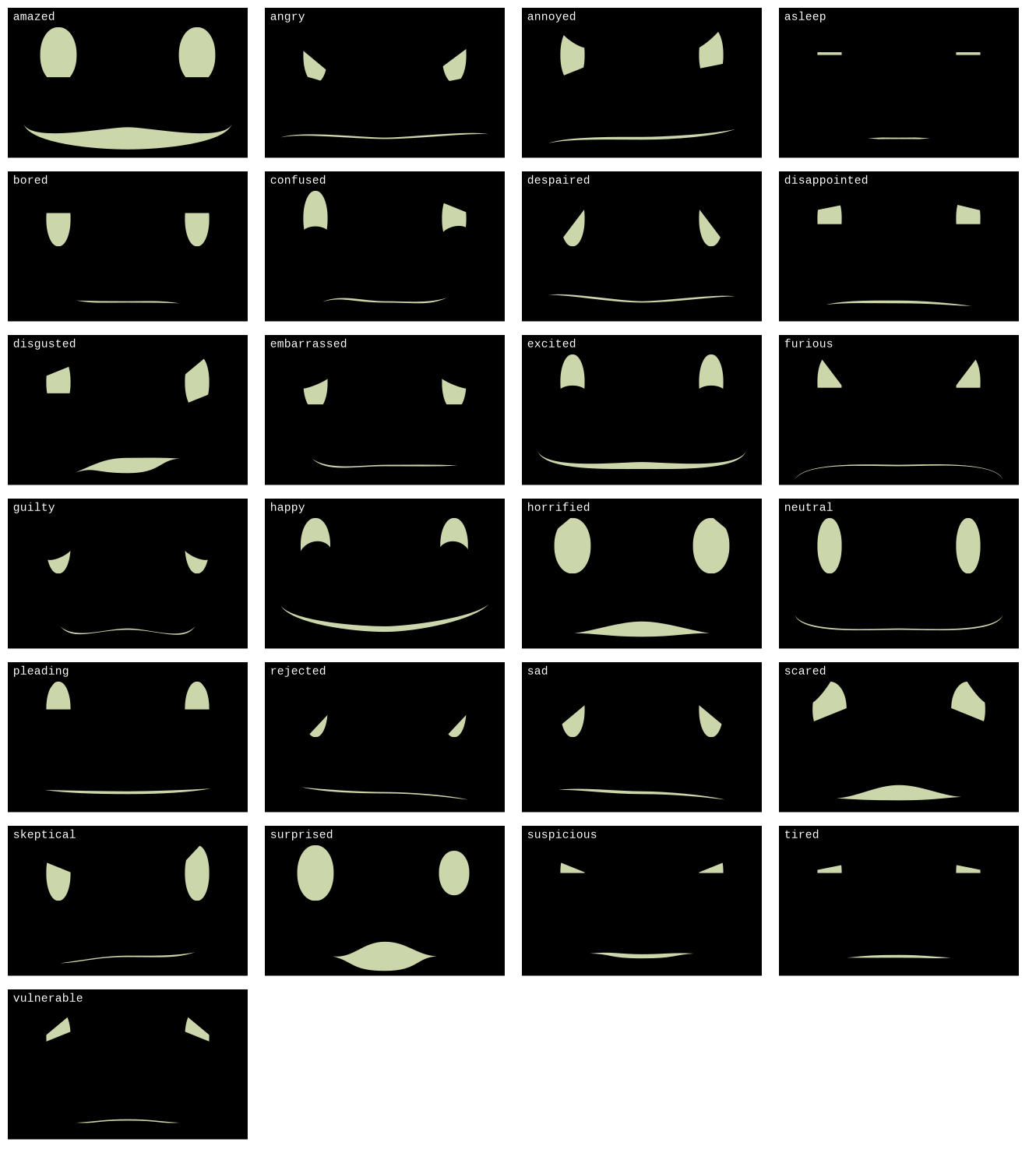
Figure 1: TIAGo Pro default face expressions
Alternatively, you can use the Circumplex Model of emotion by providing valence and arousal values.
ros2 topic pub -1 /robot_face/expression hri_msgs/msg/Expression "{valence: 0.5, arousal: 0.9}"
Modify the eye gaze direction
To change the gaze direction of the eyes, you should set a 3D point in any frame for the eyes to look at:
ros2 topic pub -1 /robot_face/look_at geometry_msgs/msg/PointStamped "header:
  stamp:
    sec: 0
    nanosec: 0
  frame_id: 'sellion_link'
point:
  x: 1.0
  y: 1.0
  z: 0.0"
To modify the direction of the head itself, refer to the Head Orientation and Gaze Control documentation.
Display your own content
If you do not want to use the default provided face, you should stop the expressive_eyes module using the following command:
pal module stop expressive_eyes
You can also disable it to prevent it from starting at boot:
pal module disable expressive_eyes
Stopping the expressive_eyes module will remove the default face and display the desktop background on the screen, allowing you to use it as a regular monitor. You can display any content on the face screen by using standard tools for displaying content on a monitor in Linux. For example, you can use vlc to play a video, any web browser to show a webpage or feh to display an image. You can also use fullscreen applications to create interactive interfaces on the face touch screen.
Head top banner
The head top banner displays
- Battery information, and
- Volume controls.
This appears that appears when you touch the top part of the screen (see Figure 2) is provided by the robot_head_display module.
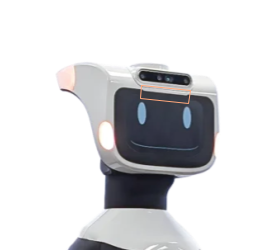
Figure 2: Tap to see the face banner
The banner that appears is as shown in Figure 3.
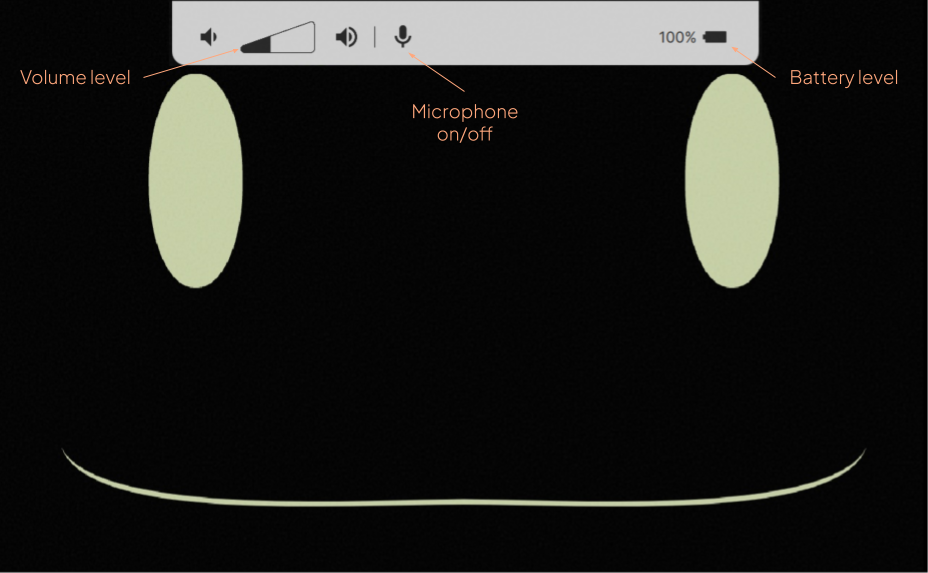
Figure 3: TIAGo Pro head banner
If you want to remove it, you can stop and/or disable the robot_head_display module