Dock and undock your robot
By the end of this tutorial, you will know how to make the robot autonomously dock and undock using the PAL dockstation.
Note
This tutorial requires the robot to be equipped with a dockstation and that the dockstation is properly powered.
Dock the robot using RViz
The easiest way to dock the robot is by using the RViz GUI. This requires that you first establish the communication with the robot.
In the same terminal that is connected to the robot, you can start RViz with the command:
rviz2 -d /opt/pal/alum/share/omni_base_2dnav/config/rviz/navigation.rviz
Otherwise, if you want to use the simulation, you can use the following command:
source /opt/pal/alum /setup.bash
ros2 launch tiago_pro_gazebo tiago_pro_gazebo.launch.py navigation:=True docking:=True world_name:=pal_office_w_docks
This starts the simulation in a virtual environment with several dockstations available.
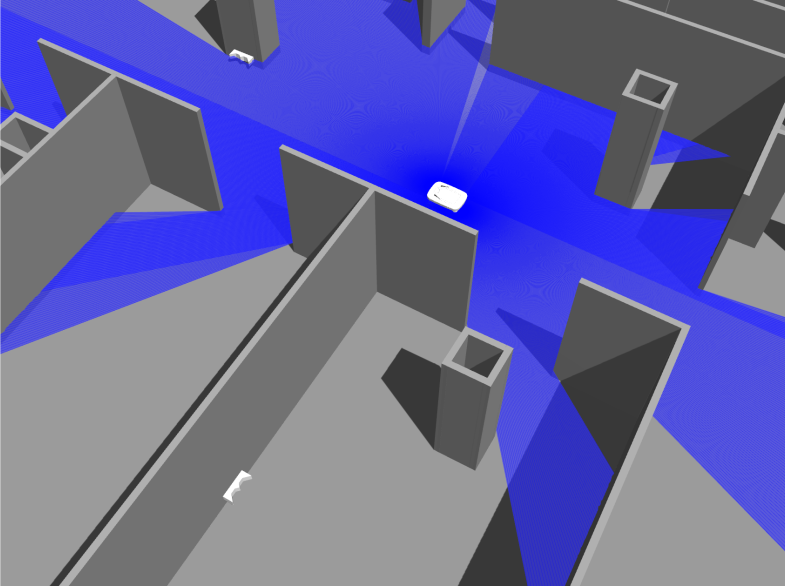
Once RViz is running and is connected to the robot or to the simulation, you can dock it by following these steps:
-
If not already available, load the
PAL Navigation 2panel in RViz
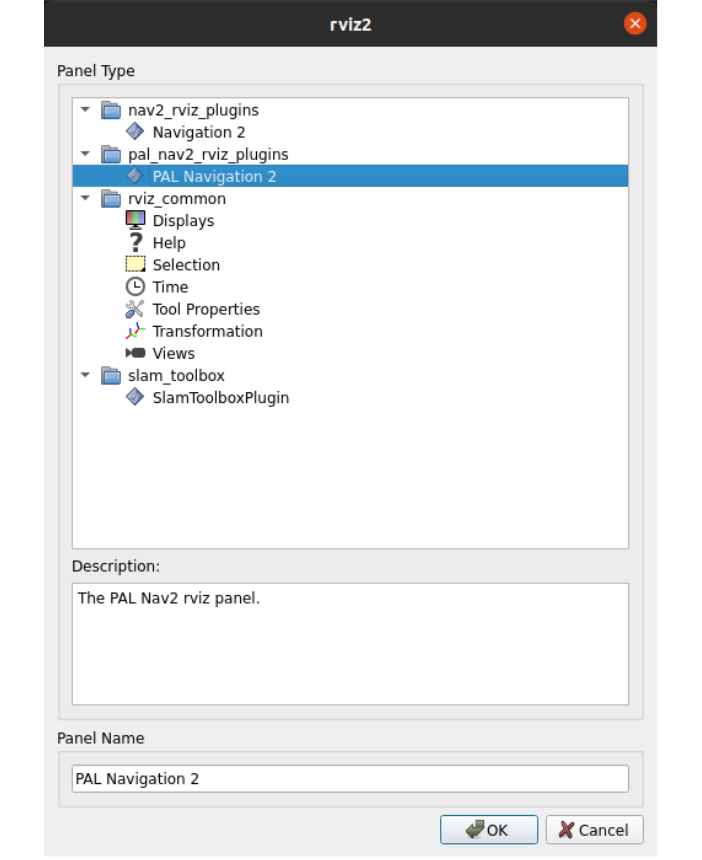
-
Go to the
Dockingtab in thePAL Navigation 2panel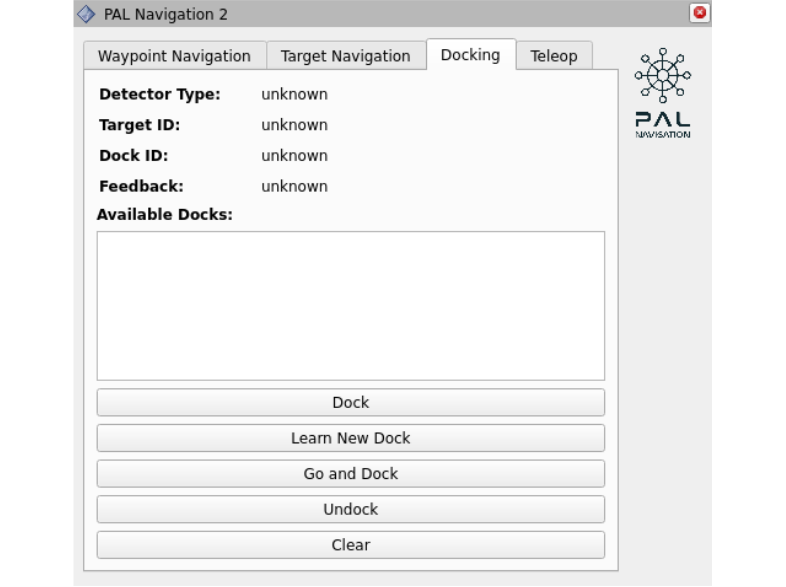
-
Place the robot in front of the dockstation, as shown in the image below:
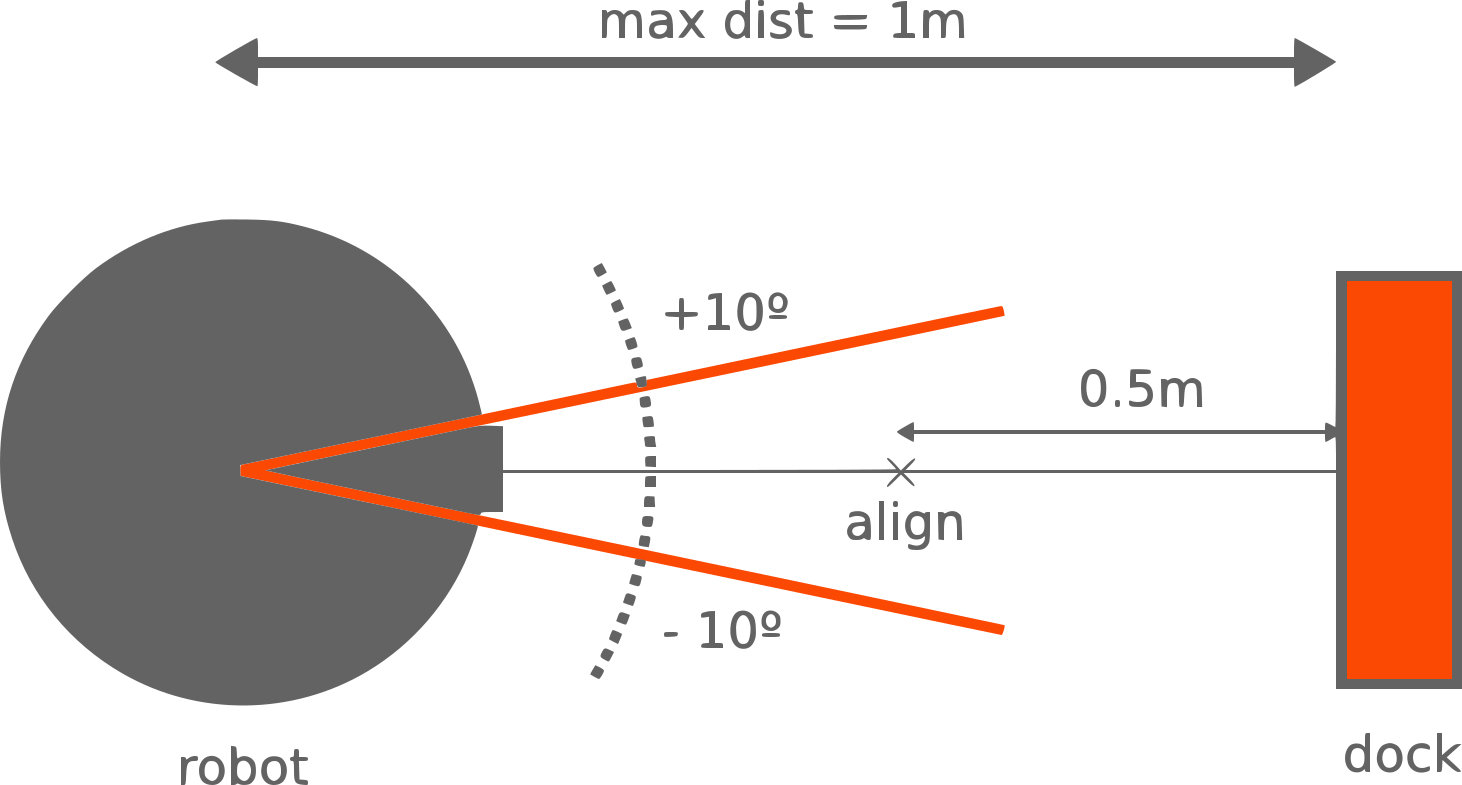
-
Click on the
Dockbutton in thePAL Navigation 2panel
This will send a new Action Goal to the dock_robot action server, which will trigger the Docking detection system and the robot will autonomously navigate to the dockstation and dock itself.
Undock the robot using RViz
The easiest way to undock the robot is by using the RViz GUI through the PAL Navigation 2 RViz panel.
To achieve this, the Docking tab in the PAL Navigation 2 panel provides an Undock button that will
send a new Action Goal to the undock_robot action server, which will trigger the undocking maneuver.
Dock the robot using ROS 2 Actions
Alternatively, to trigger the Dock, one can use the dock_robot Action. By sending an action goal to this server it will make the robot detect a dock and perform the docking maneuver. The following is an example of call to dock the robot:
ros2 action send_goal /dock_robot opennav_docking_msgs/action/DockRobot "use_dock_id: false
dock_id: ''
dock_pose:
  header:
    stamp:
      sec: 0
      nanosec: 0
    frame_id: 'map'
  pose:
    position:
      x: 0.0
      y: 0.0
      z: 0.0
    orientation:
      x: 0.0
      y: 0.0
      z: 0.0
      w: 1.0
dock_type: 'pal_charging_dock'
max_staging_time: 1000.0
navigate_to_staging_pose: false"
Undock the robot using ROS 2 Actions
Similarly, to trigger the Undock, one can use the undock_robot action. By sending an Action Goal to this Server it will make the robot perform the undocking maneuver.
ros2 action send_goal /undock_robot opennav_docking_msgs/action/UndockRobot "dock_type: 'pal_charging_dock' max_undocking_time: 30.0"