PAL Public Docker
PAL Robotics provides a public Docker image with the public simulation and navigation of the TIAGo Pro robot. This is a minimal ROS 2 humble-based image with the lastest release of the TIAGo Pro simulation package in ROS humble.
This image is hosted on DockerHub.
Note
If you own a PAL robot, you might want to use the PAL developer Docker image instead, which includes all the necessary tools to install software on the robot, as well as access to all the proprietary packages on your robot.
Installing Docker
First, install Docker for Ubuntu, either via your package manager
apt install docker.io
or following the instructions of the official page.
Note
Do not forget to follow the Linux post-install steps to be able to run docker as a non-root user.
Verify that the Docker Engine installation is successful by running the hello-world image:
docker run hello-world
Running the PAL public Docker image
Pull the PAL tutorials public Docker image:
docker pull palrobotics/public-simulation-humble-public:latest
If this is successful, you can run the image and start a container. The following is a minimal script that does this and also creates a folder in your home directory (~/exchange) that is shared with the container, allowing files to be exchanged between the host and the container.
If NVIDIA GPUs are available on the host machine, start the container with GPU support enabled.
mkdir ~/exchange
docker run -it --name pal_docker \
               --device /dev/video0:/dev/video0 \
               --env DISPLAY --env LOCAL_XDG_RUNTIME_DIR=/tmp/local-xdg-runtime \
               --volume "$XDG_RUNTIME_DIR:/tmp/local-xdg-runtime:ro" --volume /tmp/.X11-unix:/tmp/.X11-unix:rw \
               --env QT_X11_NO_MITSHM=1 \
               --volume ~/exchange:/home/user/exchange \
               --gpus all \
               palrobotics/public-simulation-humble-public
Otherwise, run it without GPU support
mkdir ~/exchange
docker run -it --name pal_docker \
               --device /dev/video0:/dev/video0 \
               --env DISPLAY --env LOCAL_XDG_RUNTIME_DIR=/tmp/local-xdg-runtime \
               --volume "$XDG_RUNTIME_DIR:/tmp/local-xdg-runtime:ro" --volume /tmp/.X11-unix:/tmp/.X11-unix:rw \
               --env QT_X11_NO_MITSHM=1 \
               --volume ~/exchange:/home/user/exchange \
               palrobotics/public-simulation-humble-public
Start the robot simulation
The PAL Public simulation docker allows the user to run the simulations of
- ARI
- TIAGo OMNI Base
- TIAGo robot and its variants: Lite, TIAGo (single arm), TIAGo++, and their versions with OMNI Base
- TIAGo Pro
- TRIAGo
The public simulation of TIAGo Pro
Once in the docker, do
source /opt/ros/humble/setup.bash
ros2 launch tiago_pro_gazebo tiago_pro_gazebo.launch.py world_name:=emtpy is_public_sim:=True
and this will open Gazebo with TIAGo Pro in an empty Gazebo world.
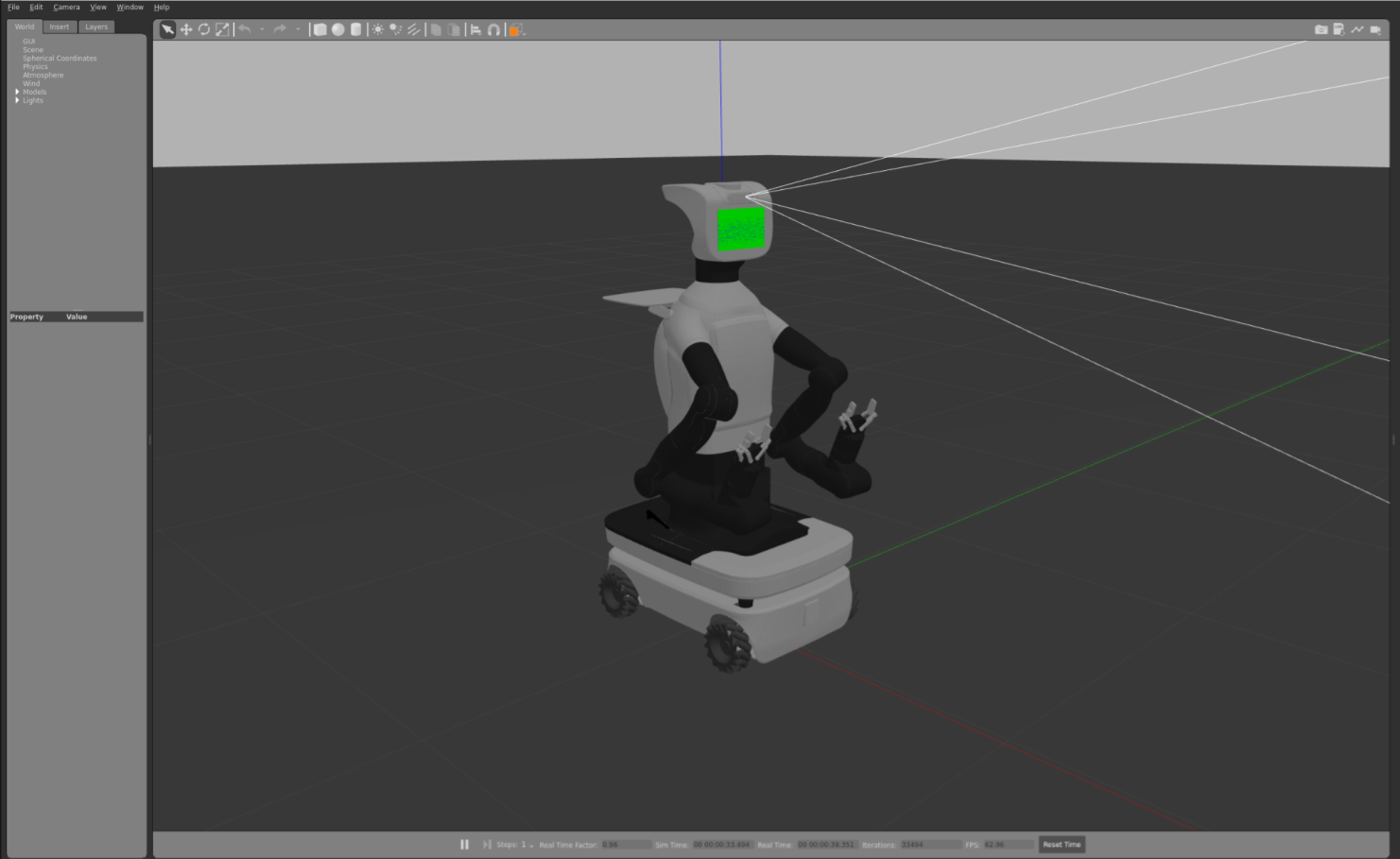
Figure 1: TIAGo Pro Simulation in Gazebo
To launch the public navigation of the TIAGo Pro robot follow the instructions in the simulation page, but adding the parameter
is_public_sim:=True
This will launch all the public resources of the default Nav2 stack.