Control Center
The Control Center is a WebGUI feature designed to monitor and manage the robot’s current state and configuration. It consists of two primary components:
- Robot Panel, which provides an overview of the robot’s status and serves as an entry point to the Control Center.
- Control Center, which allows for a detailed view of the robot’s state and enables configuration modifications.
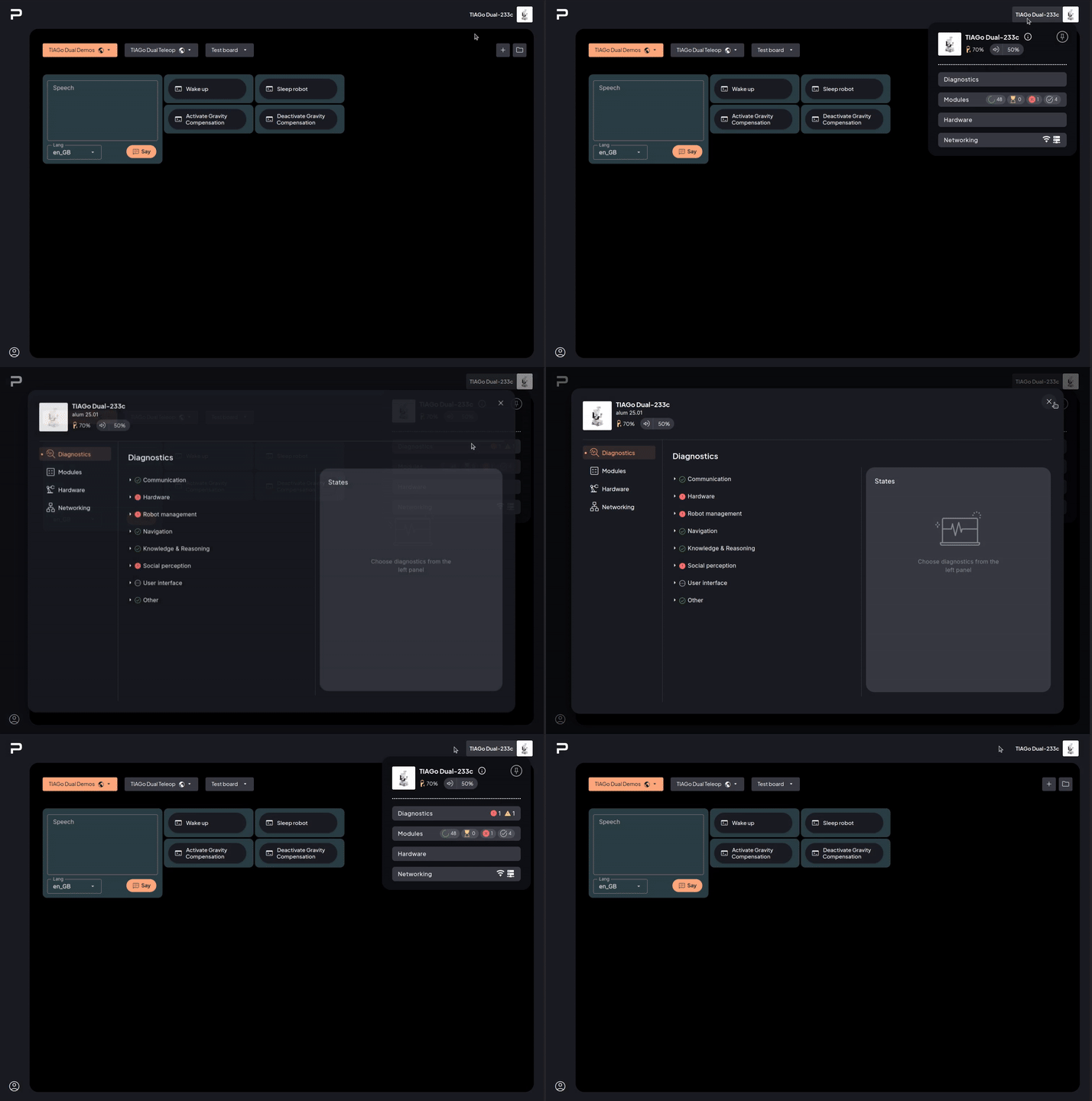
Figure 1: Acces to the Control Center
Robot panel
The robot panel provides a quick overview of the robot’s status, including essential robot information, networking settings, and diagnostics, among others. It is divided in the following sections:
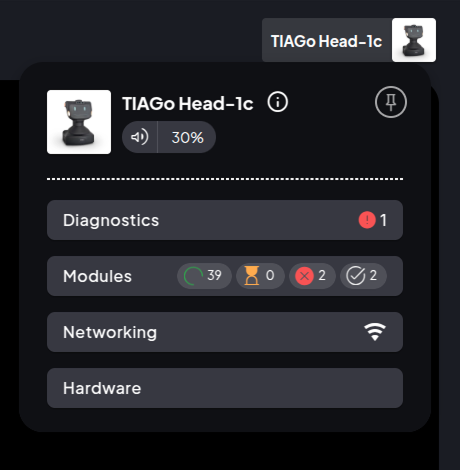
Figure 2: Control Center Robot Status Sections
Robot Info Header
Displays key details about the robot, such as:
- Robot name and serial number
- PAL software information (hover the info icon)
- Additional information (depending on robot)
- Battery and charging status
- Volume control
Hover the info icon (ⓘ) in the Robot Info Header to see the robot’s PAL software identifier. The value is shown as:
<pal-distro> <track>
For example: alum devel, alum 25.01, or alum 26.03.
Pin/Unpin button to keep the panel visible on the screen or hide it.
Plugin buttons with state indicators
This section consists of different plugins available on the robot (which may vary from robot to robot), each offering a summary of its status. For example, the Modules plugin button displays the number of modules in different states: running, waiting, finished, crashed, etc.
Clicking on the plugin button opens the Control Center, providing a detailed view and options for that selected plugin.
Robot with pressed emergency stop
When the robot has its emergency button pressed, a red icon appears next to the robot avatar.

Figure 3: Robot panel with emergency button pressed
Control center panel
The Control Center panel provides a detailed view of the robot state, and also allows modification of its configuration. It consists of three main sections:
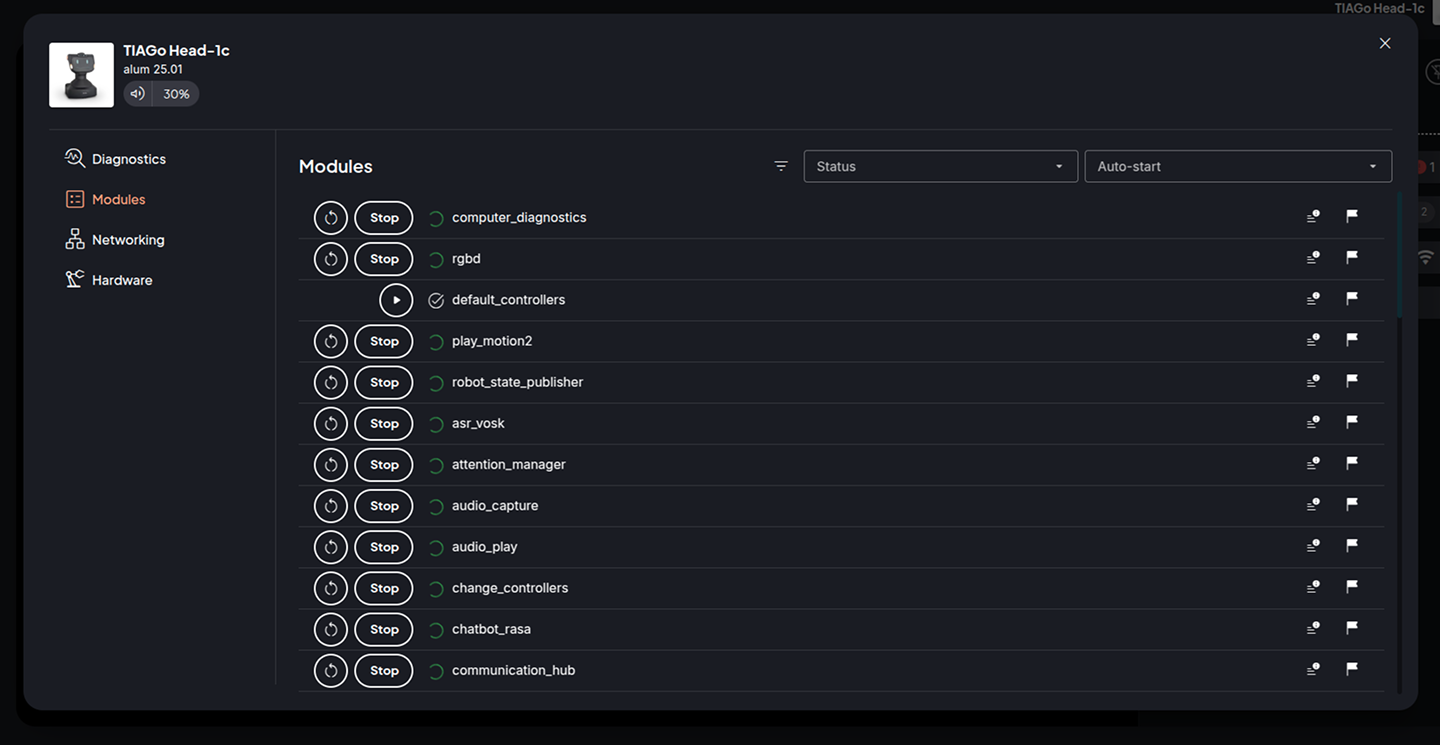
Figure 4: Control Center Interface
Robot Info Header
The information displayed in this header is the same presented in the Robot Panel.
Plugins menu
The left sidebar lists the available plugins and highlights the currently accessed one with a colored dot icon.
Plugins Section
The main display area, with the content for the selected plugin; enabling configuration modification and richer and more detailed monitoring.
Control Center Plugins
The available Control Center plugins are listed in the table below
| Plugin | Description |
|---|---|
| Diagnostics | Overview of the state of the robot and its main functionalities |
| Modules | Management of the available modules in the robot |
| Hardware | View and edit robot info |
| Networking | Configure the acces to the robot and of the robot to the internet |
| Environment | Management of buildings and maps of the robot |