Motion Builder App
Overview
The Motion Builder is a web-based app used to edit and create new expressive motions for the robot in an intuitive and easy way. A motion here refers to a sequence pairs of poses and times, where a pose is a joint reference.
Start page
The motion builder home page displays the New Motion button and a list of motions loaded on the robot. See Figure 1.
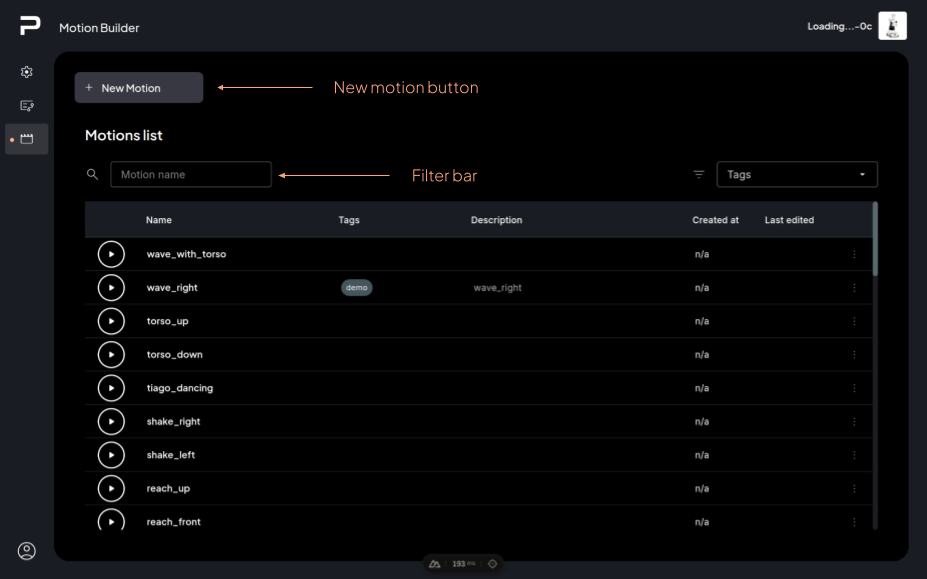
Figure 1: WebGUI's Motion Builder Start Page.
New motion Button: The New Motion button enters the creation mode of the app, to create a new motion.
Motions List: This contains
- A Filter Bar: to filter the saved motions by either name or tags assigned to them
- A List of saved motions. for each motion, there is
- The Play button: to play (and stop) a motion
- Tags
- Motion description
- Creation date
- Last update date
- Context menu, that allows to
- Copy and edit: Create a copy of the selected motion, and open the editor with that copy loaded
- Delete: remove a motion from the robot. See Figure 2
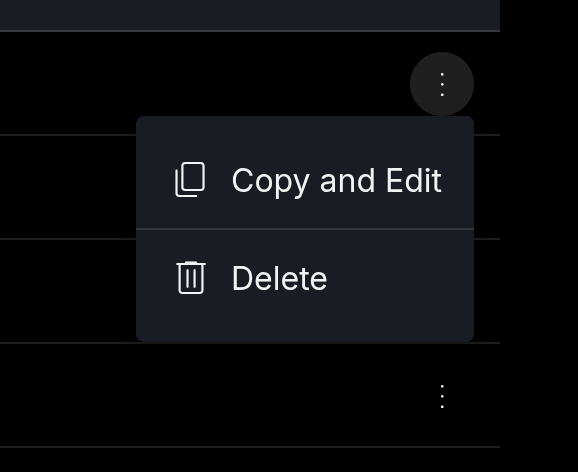
Figure 2: Context menu
The Motion Builder Editor
The motion builder editor allows visualizing and editing a motion using a visual interface. See Figure 3.
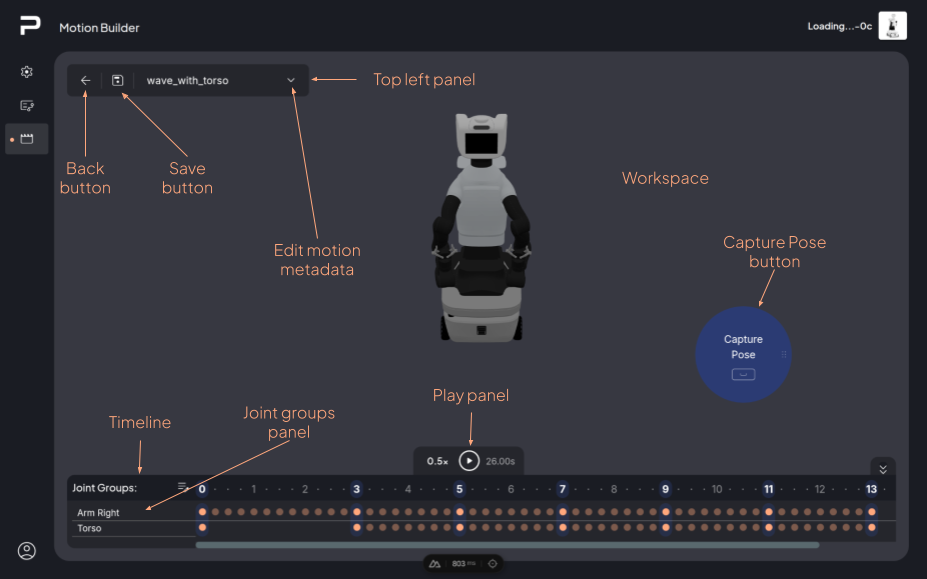
Figure 3: Motion Builder Editor
Top Left panel
The top left panel provides options to save and leave edition mode.
- The back button returns to the motion list page. If there are unsaved changes a prompt will open to confirm leaving without saving the changes.
- The save button allows saving the current motion. It will show a small red dot to indicate there are unsaved changes.
The name of the motion, its description and tag can be edited with a collapsable menu that appears by clicking the arrow next to the motion name. See Figure 4.
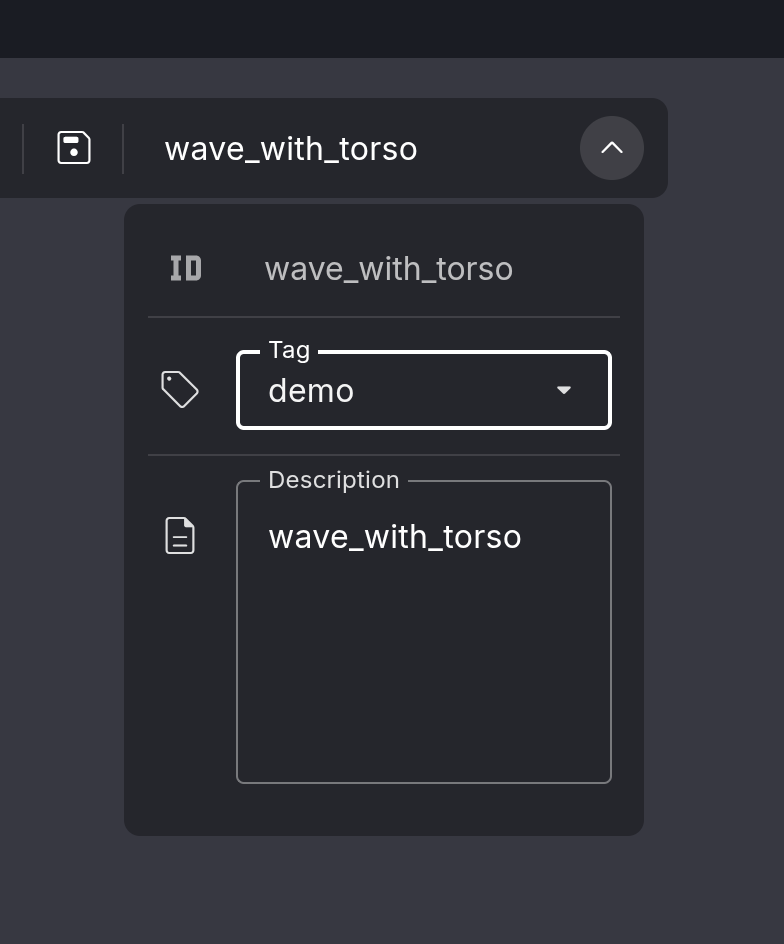
Figure 4: Drop-down menu to edit motion metadata
The ROS key of this motion is displayed on the ID field. This ID is autogenerated based on the name, and it can’t be modified.
Workspace
A 3D representation of the current reference of the robot is shown in the workspace. This reference is the reference of the real robot. The camera can be zoomed in and out by using the scroll wheel (or two fingers on a touchpad), panned by holding the right mouse button and moving the mouse, and rotated around the center of the workspace by holding the left mouse button and moving the mouse. See Figure 5.
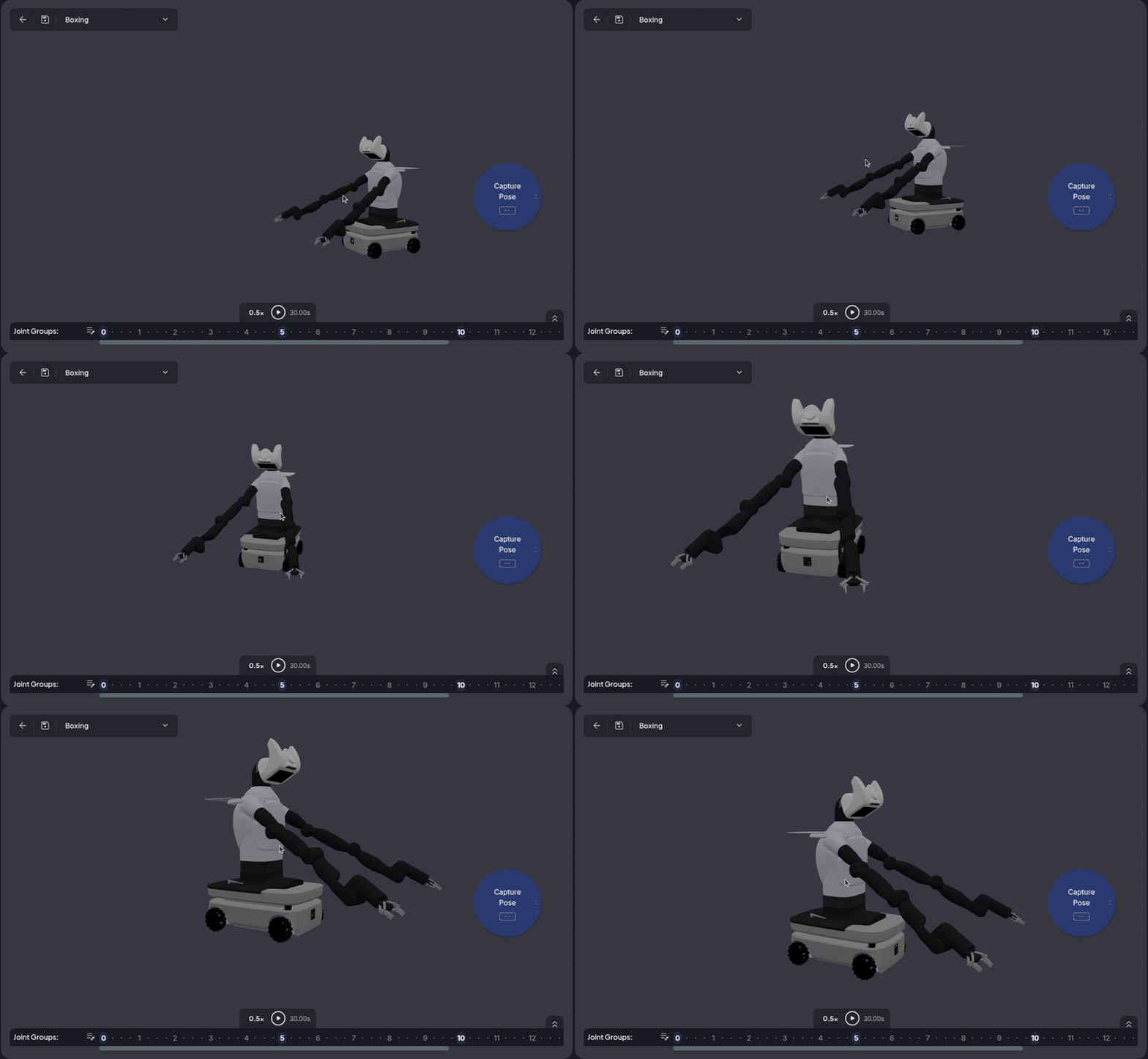
Figure 5: Camera control using the mouse
The navy blue Capture Pose button allows capturing the current reference of the robot. Capturing a reference adds it at the end of the timeline as a new reference in the motion. This button can also be triggered by pressing the space bar. It can also be repositioned by using the drag & drop handle on the right side of the button. See Figure 6.
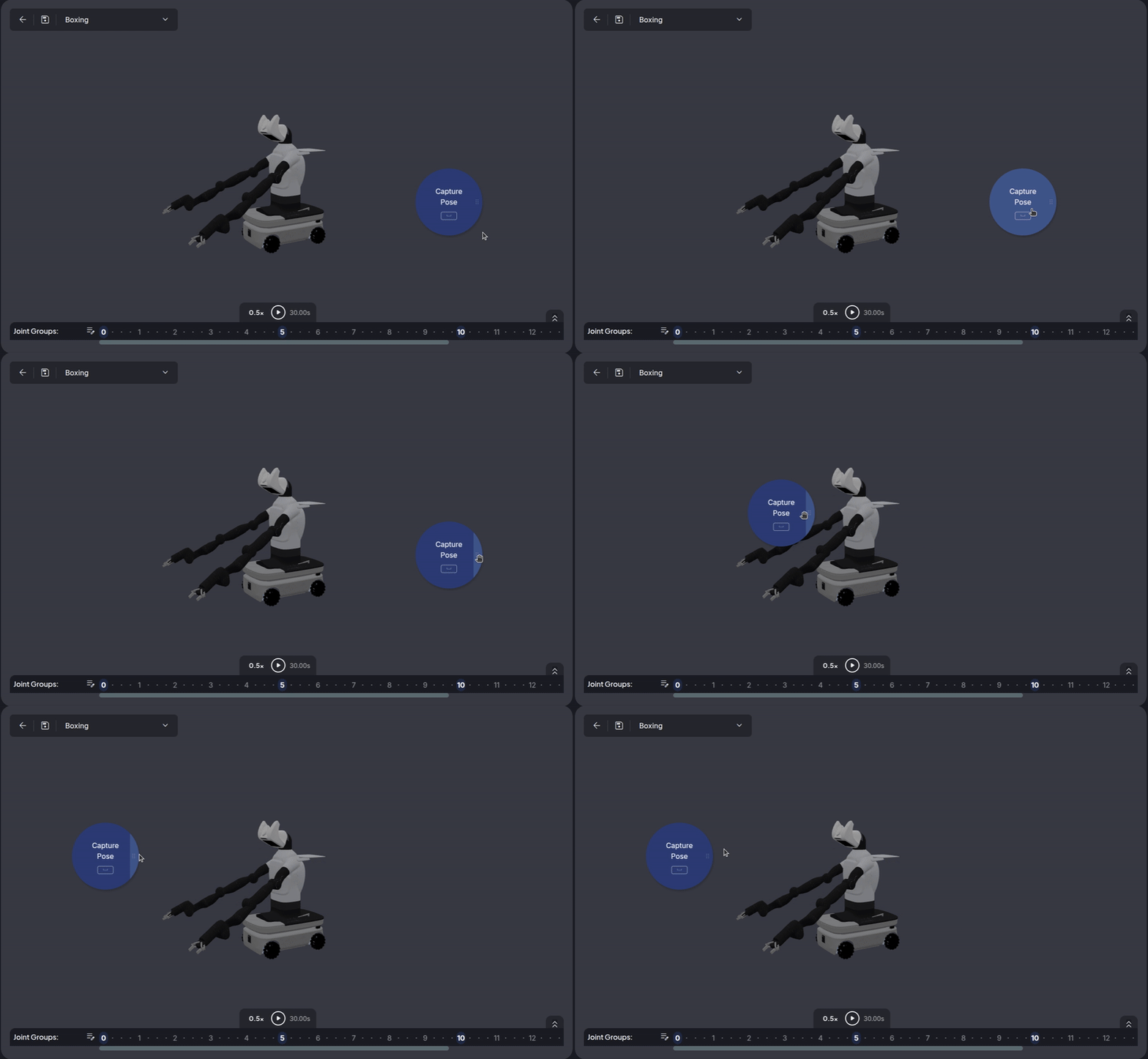
Figure 6: Drag and drop the Capture button
Timeline
The timeline at the bottom of the screen displays the current motion. It can be collapsed and expanded with the arrows on the top right, see the purple circle in Figure 7.


Figure 7: Expanded (top) and collapsed (bottom) timeline panel
Play panel
On top of the timeline there is a small panel that allows playing the motion. On the left of the play button a speed multiplayer is provided to allow the motion to be executed at slower speeds for testing purposes. See Figure 8.
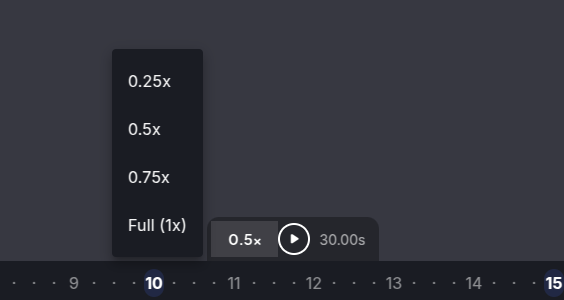
Figure 8: Play panel speed menu
The total time that the motion takes to finish is shown on the right of the play button. This time is computed taking into account the current selected speed.
Joint groups panel
The Joint Groups panel allows changing the groups of joints that will be used in the open motion. Joint groups that are not used in a motion are “free”, and thus are allowed to stay at any position or move freely while the motion is executed. See Figure 9.
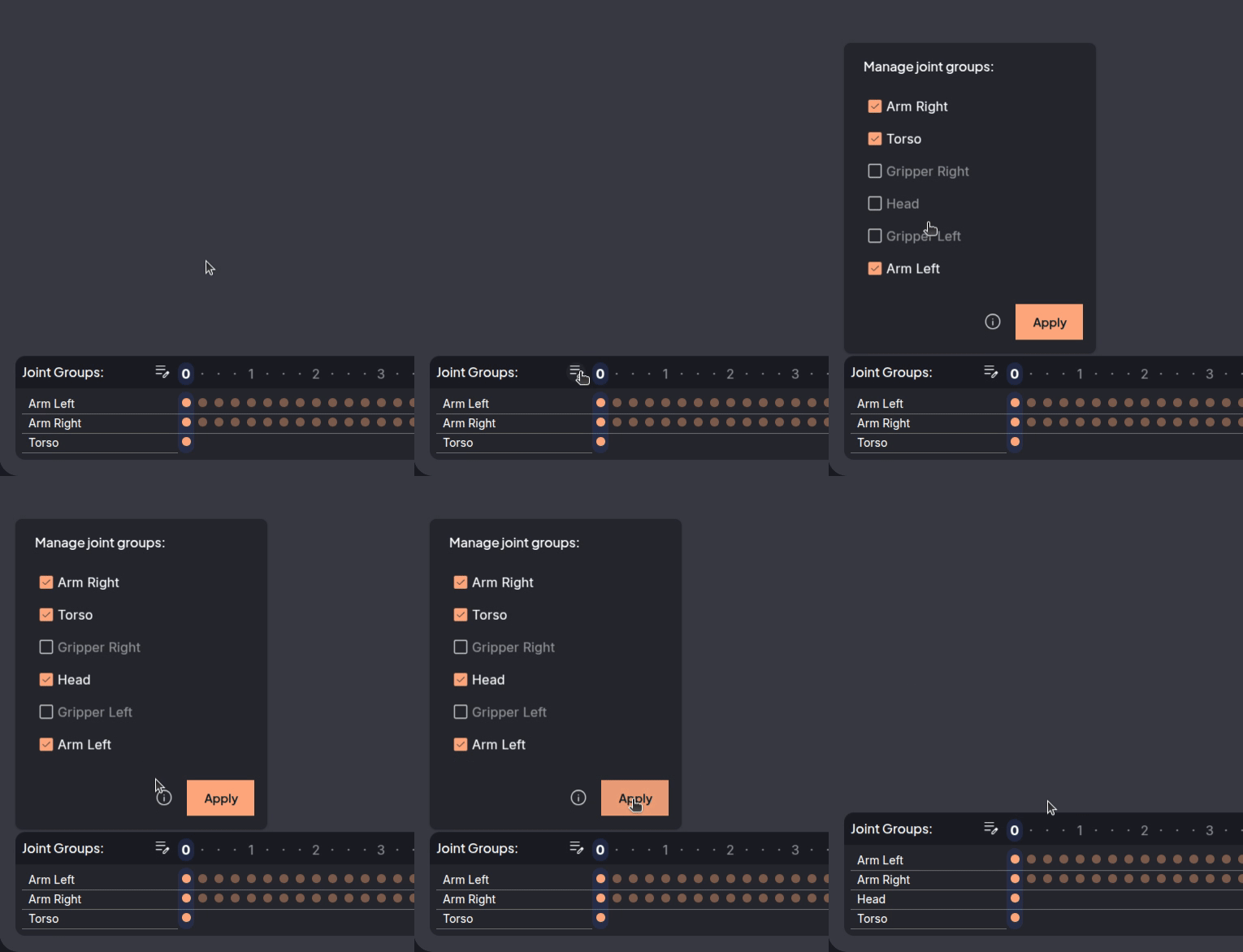
Figure 9: Manage joints to be used in the motion
WARNING When unselecting a joint group and leaving it uncontrolled, the current positions at each reference will be erased. When adding a previously uncontrolled joint group, its joints will be initialized at their current position, which could lead to self collisions. It is strongly recommended to review the motion and correct any poses as needed.
IMPORTANT Leaving a Joint group uncontrolled might lead to self-collision. It is hence recommended to carefully consider the risks of collision before determining that a joint group can be left “free”.
Pose display
The timeline shows the full motion as a function of time in the horizontal. The timeline table displays a line for each joint group, and columns for time, in 0.25 seconds increments. For each joint group there are 3 states, see Figure 10.
wg3_mb_poses_cells_chart.png
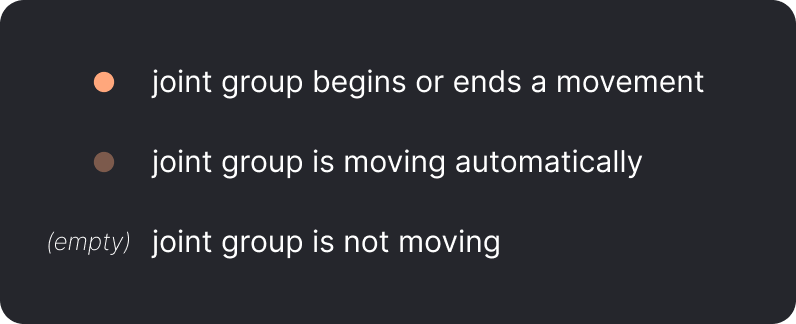
Figure 10: Joint group status
- A peach-colored dot if at that point in time there is a pose in which that group either begins or ends a movement,
- A faded out peach-colored dot if the joint group is automatically moving at that point in time, and
- An dark (non-visible) dot if the joint group is not moving at that point in time.
Poses can be moved by dragging and dropping, see Figure 11. A pose can’t be moved to a point back in time that is equal or smaller to an existing pose (i.e. if there is a pose at time 1 and another at time 2, the second pose can’t be moved any earlier than 1.25). If a pose is moved to a later time, and there are other poses afterwards they will be moved by the same amount (i.e. in the previous case, if we move the pose at time 1 to time 3 the pose at time 2 will move to time 4).

Figure 11: Dragging poses in the timeline
Right-clicking on a pose opens the context menu to manipulate that pose, see Figure 12.
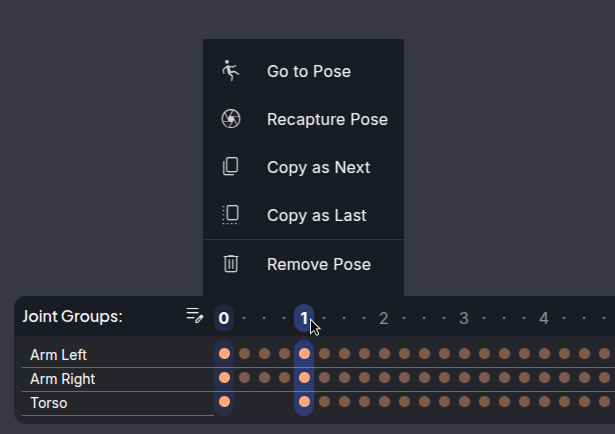
Figure 12: Pose context menu
The menu allows the following options:
- Go To Pose: Move the robot so that it takes that pose.
- Recapture Pose: Edit this pose to become the current pose of the robot.
- Copy as Next: Create a new pose, equal to this one, at time t+0.25
- Copy as Last: Create a new pose, equal to this one, at time [last pose time]+0.25
- Remove Pose: remove this pose from the motion, without affecting other motions.