WireGuard Setup
Your TIAGo Pro robot comes with a Mikrotik router that comes preconfigured with the WireGuard VPN. This allows PAL to connect to the robot by demand to the client, but also allows the client to connect to the robot remotely.
Warning
The remote connection to the robot provides full access and control to it. Avoid making any action that leads to the motion in case there is no one close to the robot with an emergency button ready.
This tutorial is a guide on how to configure your PC to gain access to your robot through the WireGuard VPN and how to start it at startup in your machine.
Step 1: Generate new peer
A new peer to configure the WireGuard VPN can be created from the WebGUI.
Access the Networking Plugin of the control center. On the bottom of the left column you will see the list of available peers. The Generate New Peer button on its right allows you to create a neew peer. See Figure 1.
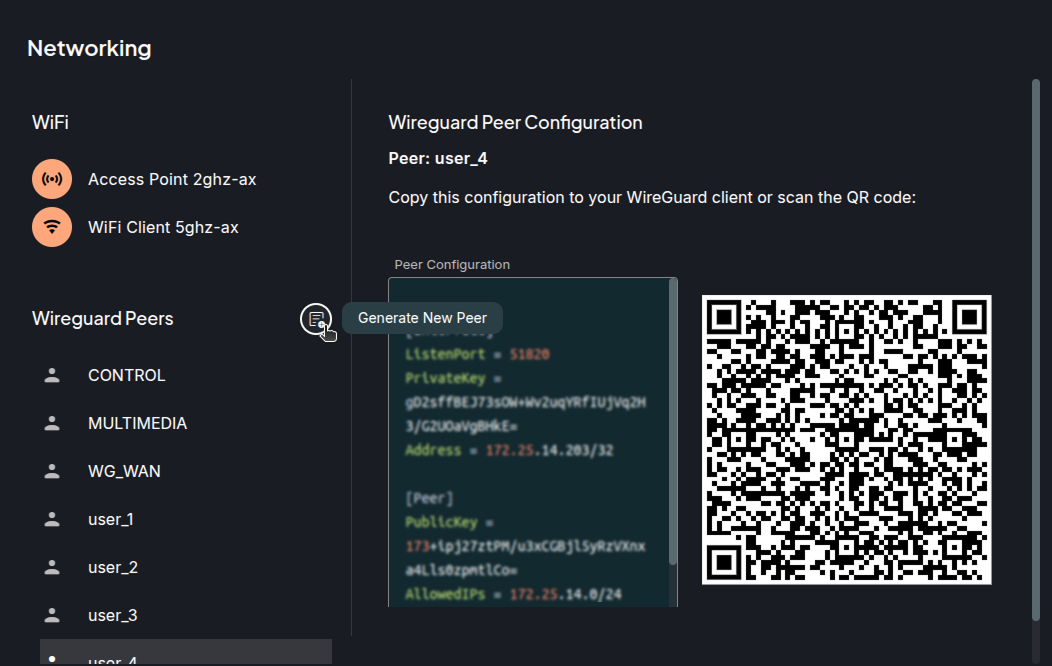
Figure 1: Create a new WireGuard Peer.
The peer configuration appears in the right column, titled Peer configuration.
Step 2: Configure your PC
Step 2.1: Install Wireguard
Make sure that WireGuard is installed in your PC by doing
sudo apt update
sudo apt install wireguard -y
Step 2.2: Copy the peer configuration
Copy the peer configuration you created in Step 1 into a file in the /etc/wireguard folder. In a terminal in your PC, do
sudo vi /etc/wireguard/wg0.conf
Step 2.3: Lift the connection up
Lift the WireGuard connection up by doing
sudo wg-quick up wg0
You should see an ouptut of the form
[#] ip link add wg0 type wireguard
[#] wg setconf wg0 /dev/fd/63
[#] ip -4 address add 10.128.1.[2-254]/32 dev wg0
[#] ip link set mtu 1420 up dev wg0
[#] ip -4 route add 172.26.0.0/16 dev wg0
[#] ip -4 route add 172.25.0.0/16 dev wg0
Step 2.4: Check the connection
To check if the connection is up, do
ip a
you should see an output containing
...
4: wg0: <POINTOPOINT,NOARP,UP,LOWER_UP> mtu 1420 qdisc noqueue state UNKNOWN group default qlen 1000

    link/none

    inet 10.128.1.[2-254]/32 scope global wg0

       valid_lft forever preferred_lft forever
Also, try to ping your robot
ping 172.25.<SN>.1
where <SN> is the Serial Number of your robot.
Step 3: Configure the WireGuard service at startup
This step is optional. Following this will avoid having to lift up the WireGuard connection every time you reboot your machine.
Step 3.1: Add the service to systemd
Do
sudo systemctl enable wg-quick@wg0.service
sudo systemctl daemon-reload
Step 3.2: Start the added sevice
sudo systemctl start wg-quick@wg0.service
Step 3.3: Check the service status
Reboot your PC. To check if the service is on check its status
sudo systemctl status wg-quick@wg0.service