WebGUI User Management
The WebGUI uses a User / Password model of authentication to keep track of individualized data and preferences for each User.
User types
There are two categories of users: Regular users, and Administrators. Both Regular and Administrator users have full access to all the features offered by the WebGUI, however, only Administrator users can manage other users.
Regular users can change their own password using the Reset Password button next to their user name in the Account menu. See Figure 1.
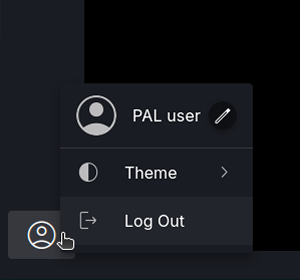
Figure 1: Regular User Context Menu.
Administrator users will see their status indicated under their username. In addition, Administrator users have access to the Manage Accounts panel, which allows creation, modification, and removal of users.
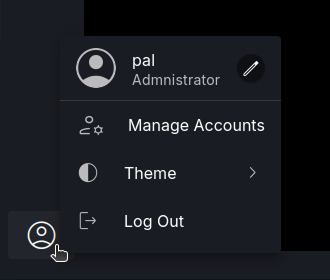
Figure 2: Administrator User Context Menu
Account management
The Manage Accounts panel shows a list of all users in the application. The current user is shown first, followed by the pal user, and then all other users in alphabetical order. For each user, elements are shown to display:
-
Administrator status: It can be changed by clicking on the checkbox to enable/disable Administrator status. This action can’t be done for the current user, nor for the pal user.
-
Reset Password: This option allows changing the password of a user.
-
Delete: This option allows the permanent removal of the user from the system. This action can’t be performed neither for the current user, nor for the pal user.
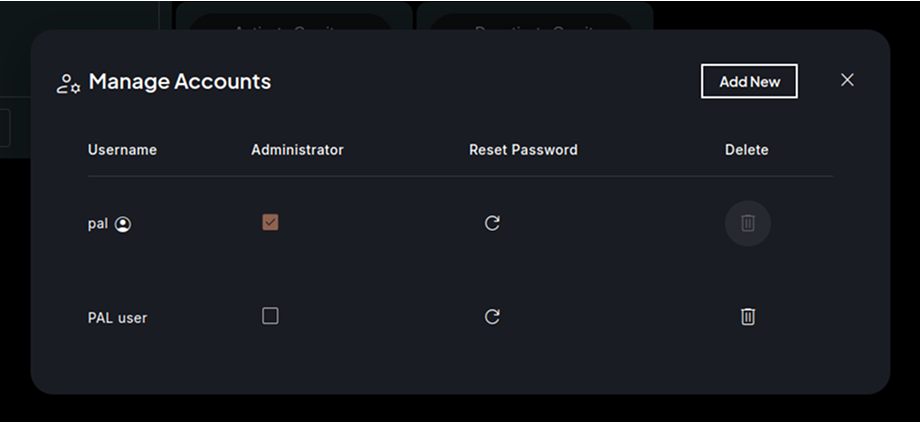
Figure 3: Administrator account manager
Add new user
The Add New button on the top right of the panel allows the creation of a new user:
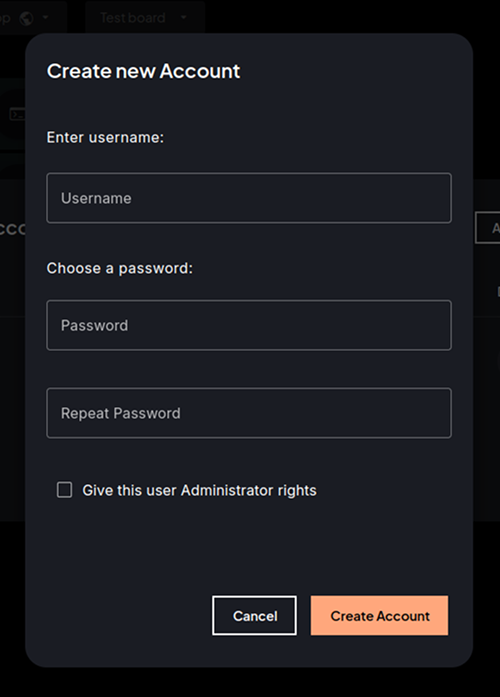
Figure 4: Administrator account creating a new user
To create a new user, supply the username, choose an initial password, and then check the Administrator rights option if desired. If an error occurs during the creation of the user (i.e., because the username is already in use), a snackbar error message will appear.