The WebGUI
The Web-based Graphical User Interface (WebGUI) is a robot control and configuration tool that consists of a set of plugins and applications. This has been fully developed and maintained by PAL Robotics. It is designed to simplify robot management, interaction, and the overall user experience.
Accesing the WebGUI
The WebGUI is accessible via a web browser. You can use most modern digital devices, but the best experience and full functionality are available on personal computers, such as desktops or laptops.
To access the WebGUI, you must be connected to the same network as the robot you want to connect to.
Depending on the network configuration for the robot, you can access the WebGUI using the hostname or the IP address assigned to the robot. For a TIAGo Pro it would be
http://tiago-pro-<sn>c
Figure 1 shows how to access the WebGUI for an ARI robot.

Figure 1: Accessing the WebGUI.
Login page
When accessing the WebGUI, a username and password will be required, see Figure 2. The default credentials are pal / pal. You may be provided with your own user account, or you can create new user accounts from any account with administrator privileges. See the user management section.
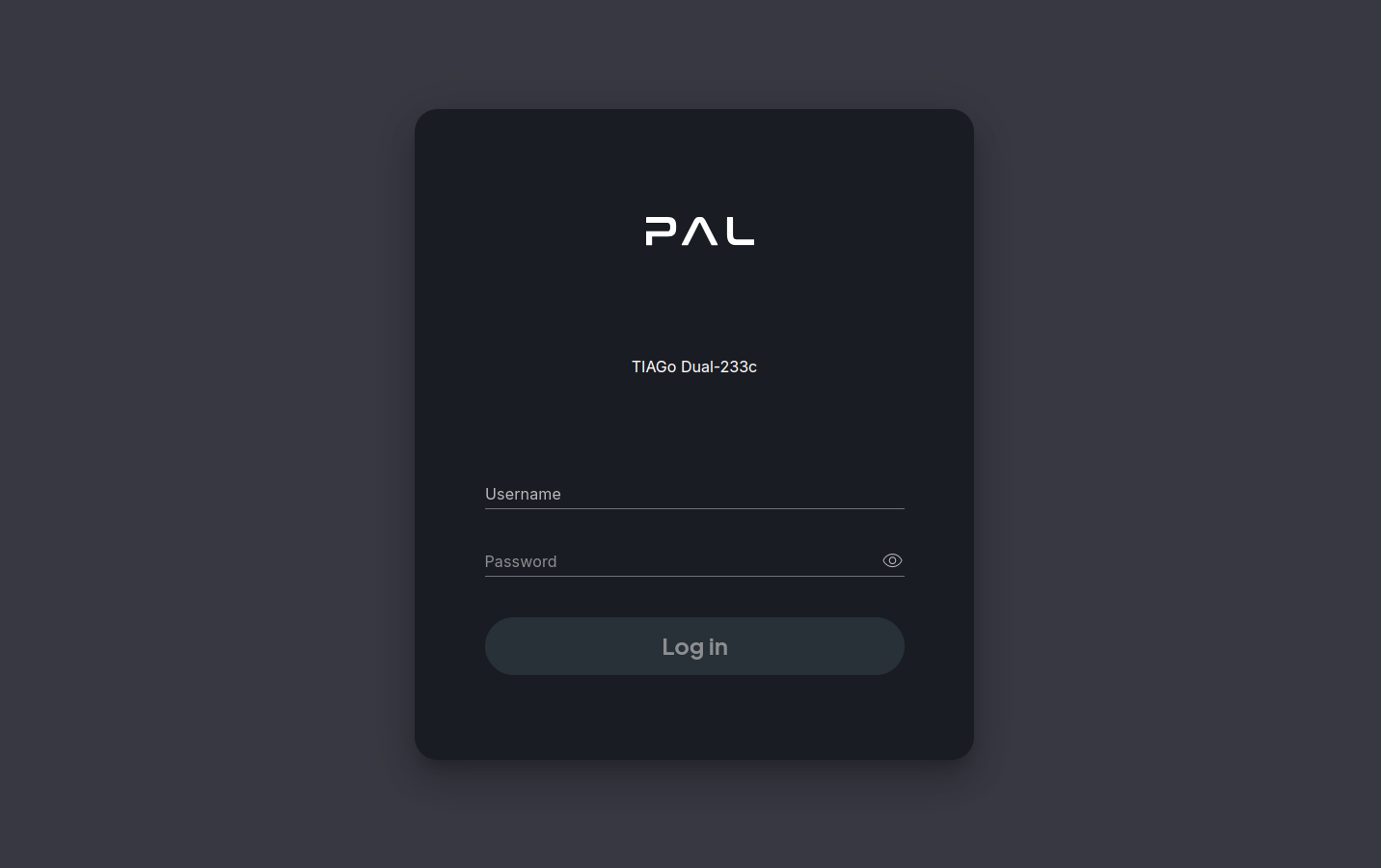
Figure 2: WebGUI Login page.
Once authenticated you will automatically be redirected to the main page. The session lasts for a week, or until the user logs out, whichever happens first.
Main interface
The WebGUI interface consists of four main elements:
- Top-left corner: PAL logo, which navigates back to the main page.
-
Left-side menu: Contains an account button with options such as password management and UI preferences (e.g., Dark/Light mode). It also contains a list of available web apps, which can be accessed by clicking on them.
-
Top-right corner: A persistent button displaying the connected robot’s model, serial number (SN), and avatar. It provides access to the Robot Panel, where you can monitor the main robot’s configuration and navigate to the Control Center for full control. The Robot Panel includes a Pin/Unpin button to show or hide it.
-
Main workspace: The central area of the screen, where the current application is displayed.
See Figure 3.
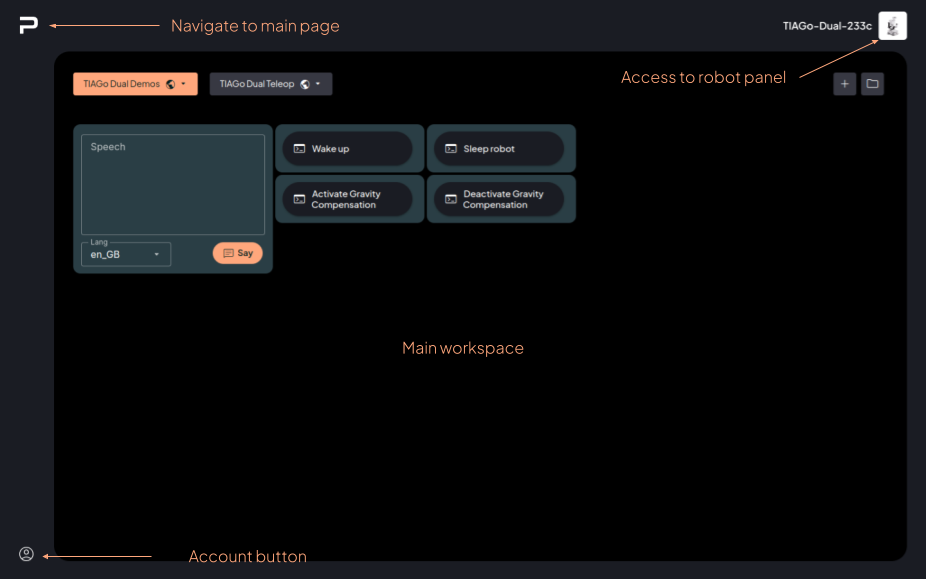
Figure 3: WebGUI main interface.
Web Apps
The Web User Interface is comprised of several web applications that provide different functionalities. Here is a list of available applications:
Note
The exact list of Web apps available on the robot may vary depending on the robot type and the installed software.
Boards App
The Boards App serves as the homepage of WebGUI. It enables users to create and configure custom boards for monitoring and teleoperating the robot. These boards are highly customizable, offering a wide range of options to adapt the interface to individual user preferences at any time.
Motion Builder App
The Motion Builder is a web-based application designed to intuitively create and edit expressive robot motions. In this context, a motion consists of a sequence of pose–time pairs, where each pose represents a set of joint reference values.
Visual Programming App
The Visual Programming is a web based app used to create programs for the robot in a simple and user friendly way. It consists of creating graph structures to manage actions that need to happen in a specific order using nodes. Each node in the graph is an action with a unique ID anthatd tells the system what to do next. For most nodes, error handling can be configured to either do something in case of error, or ignore it.
Floor Editor App
The Floor Editor is a web based app for creating and managing floors, and navigation elements on them. It allows users to place and edit waypoints, anchors, lanes, and zones that the robot uses for autonomous navigation.