Widgets
The Boards app offers many widgets, availability depends on the robot characteristics.
Monitoring Widgets:
Teleoperation Widgets:
Buttons:
Visualization Widgets:
Joystick
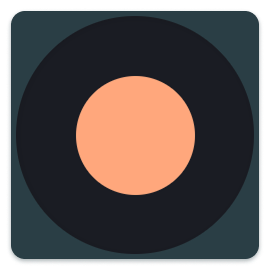
Figure 1: Joystick Widget
The Joystick widget allows controlling the position of the robot. Moving the joystick towards the front or towards the back will make the robot start moving forwards or backwards respectively. Moving the joystick towards the sides will make the robot rotate in the same direction.
Letting go of the joystick will make the robot stop immediately.
The Joystick widget has no special configuration options.
Camera View
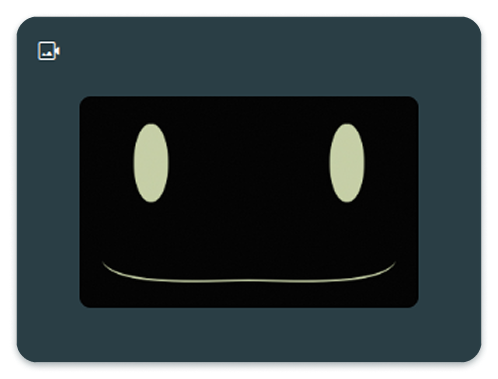
Figure 2: Camera View Widget
The camera view widgets show a live feed of a CompressedImage topic offered by the robot (any topic with that type on the robot can be used).
The camera view widget has one configurable property:
- Image topic: The CompressedImage topic to be displayed.
Motion Button
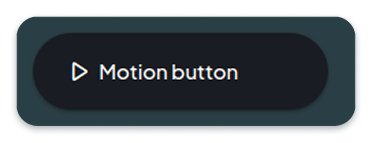
Figure 3: Motion Button Widget
The motion button triggers a motion (executed via play_motion) when clicked. The motion can be stopped by clicking on the same button while the motion is running.
The motion button widget has two configurable properties:
-
Label: Text that will be displayed on the button.
-
Motion: Name of the motion that will be used, selectable from the dropdown list of existing motions.
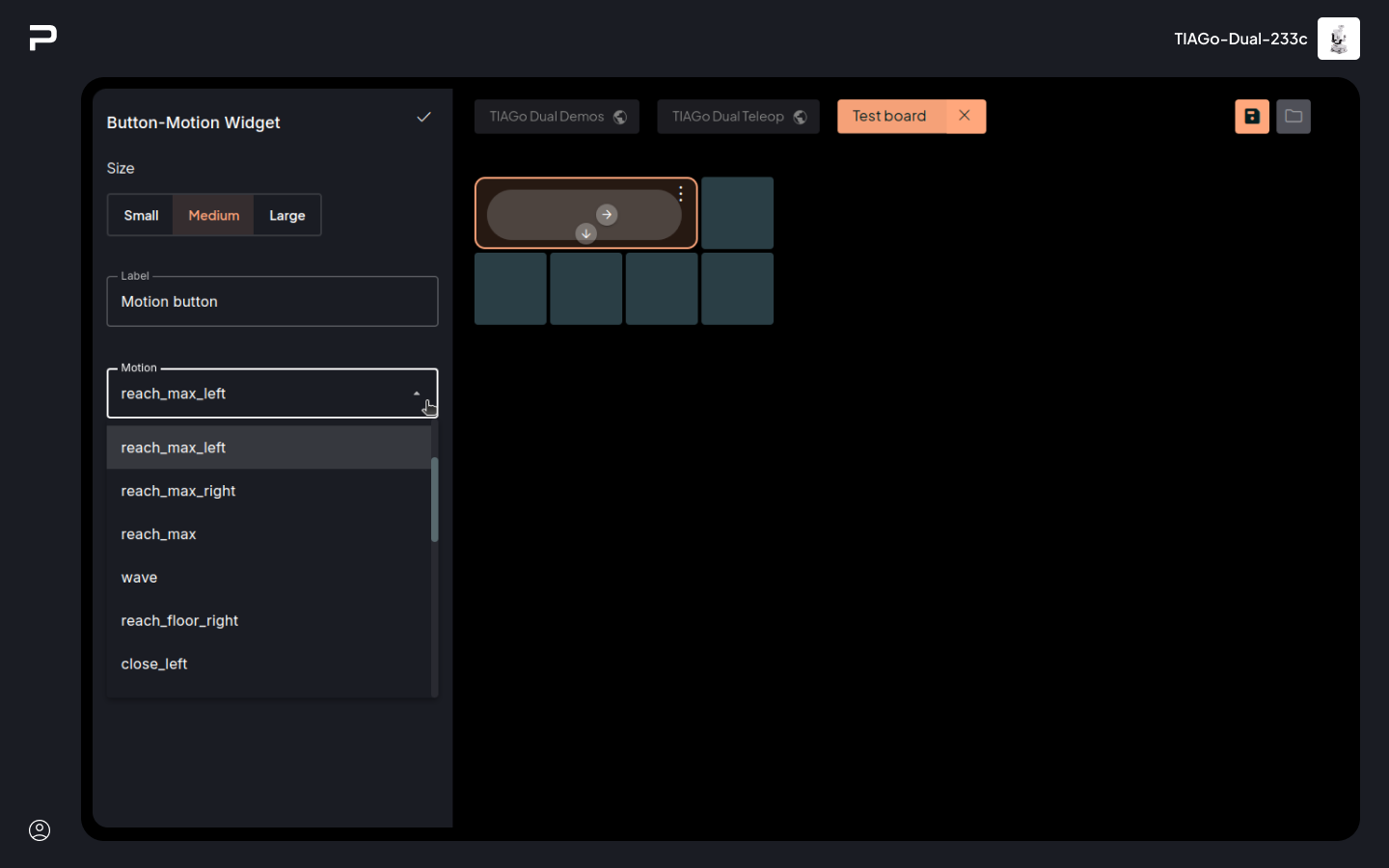
Figure 4: Motion Widget with motion dropdown list
Bash Button
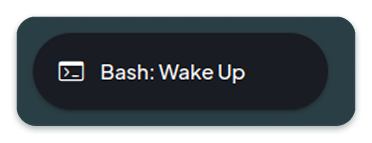
Figure 5: Bash Button Widget
Warning
The bash button triggers a bash command on the robot. This option is potentially harmful, so care should be taken to ensure the bash commands given are not problematic for the robot.
The bash button widget has two configurable properties:
-
Label: Text that will be displayed by the button.
-
Command: Bash command to be executed on the robot.
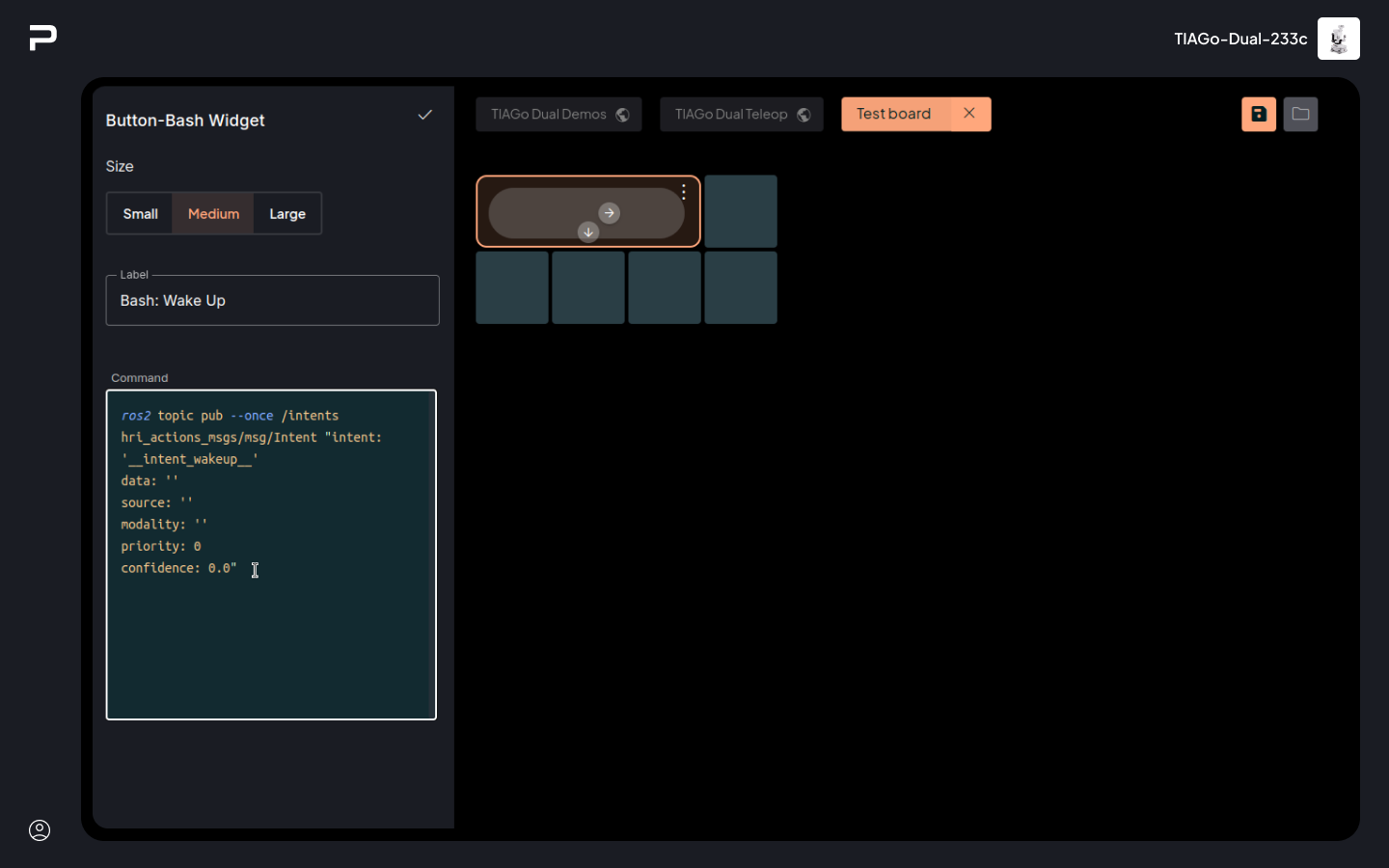
Figure 6: Bash Widget with code text area
Program Button
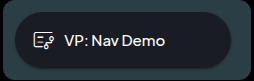
Figure 7: Program Button Widget
The Program Button Widget can be used to launch a Visual Programming program created previously.
The Program Button widget has two configurable properties:
-
Label: Text that will be displayed by the button
-
Program: The visual programming program to be run, to be chosen from the dropdown list of created programs.
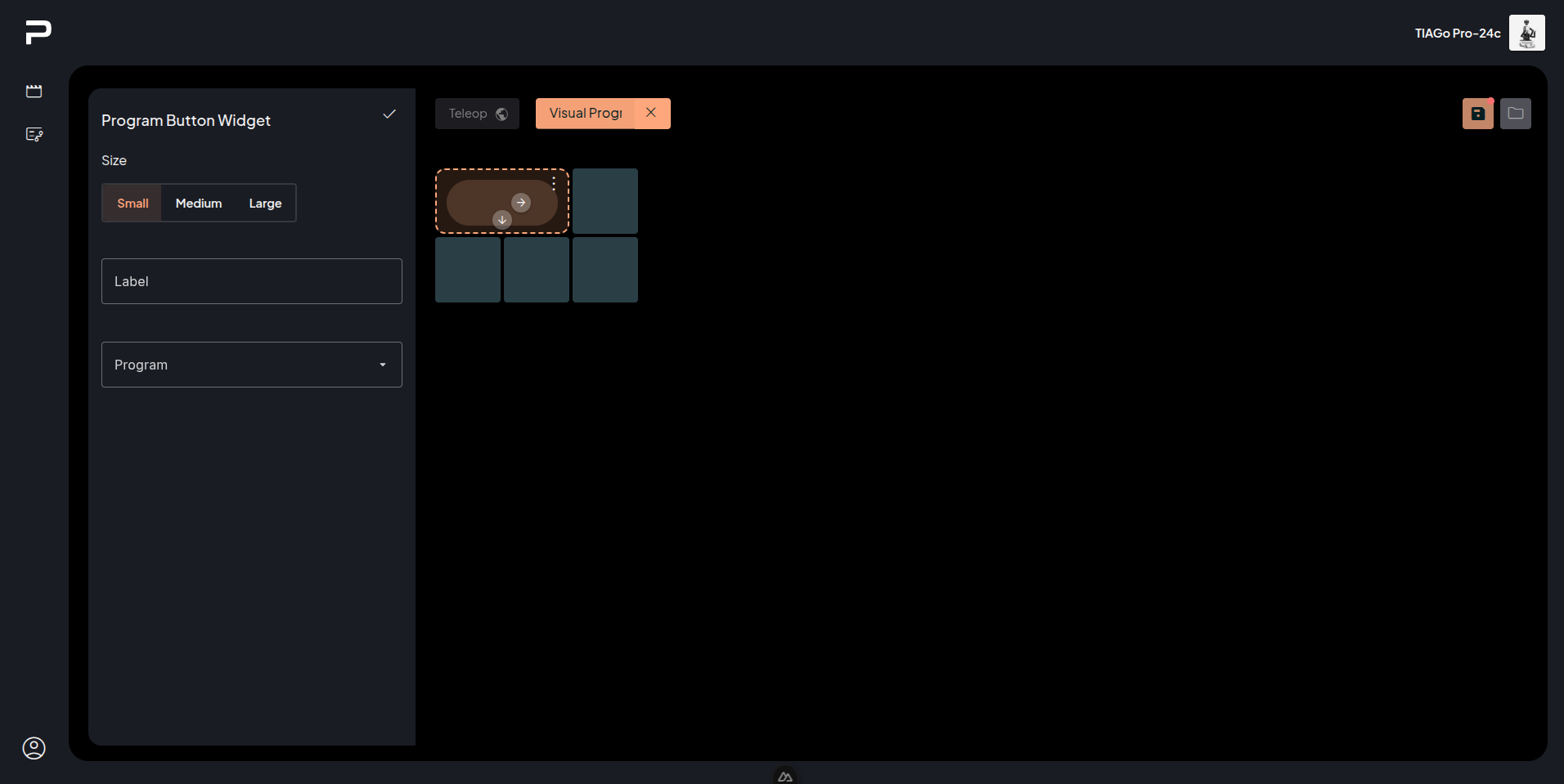
Figure 8: Program Button Widget Edit Section
Some programs can be incomplete when added on the board, in that case the button will be disabled and show a dashed border.

Figure 9: Program Buttons Widgets operative and unoperative, with dashed border
Check the Visual programming app documentation for more information on how to create and manage programs.
Joint Control
The Joint Control Widget allows control of a specific joint of the robot, either through a slider, or with a numeric input field. When the joint is being controlled a second tick will appear on the track, to show the current position of the joint.
The Joint Control widget has one configurable property:
- Joint name: Name of the joint to be controlled.
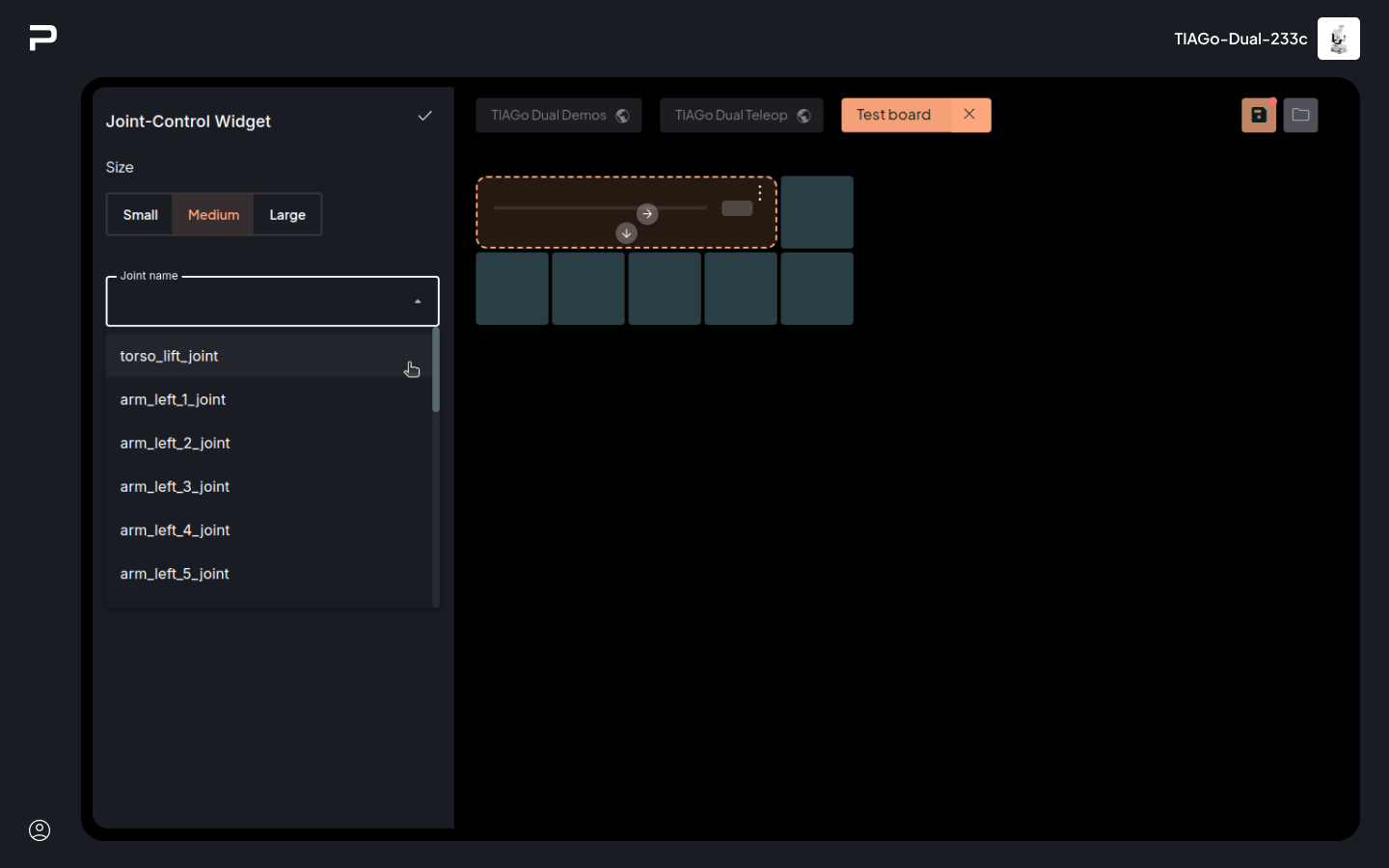
Figure 10: Joint Control Widget Edit Section
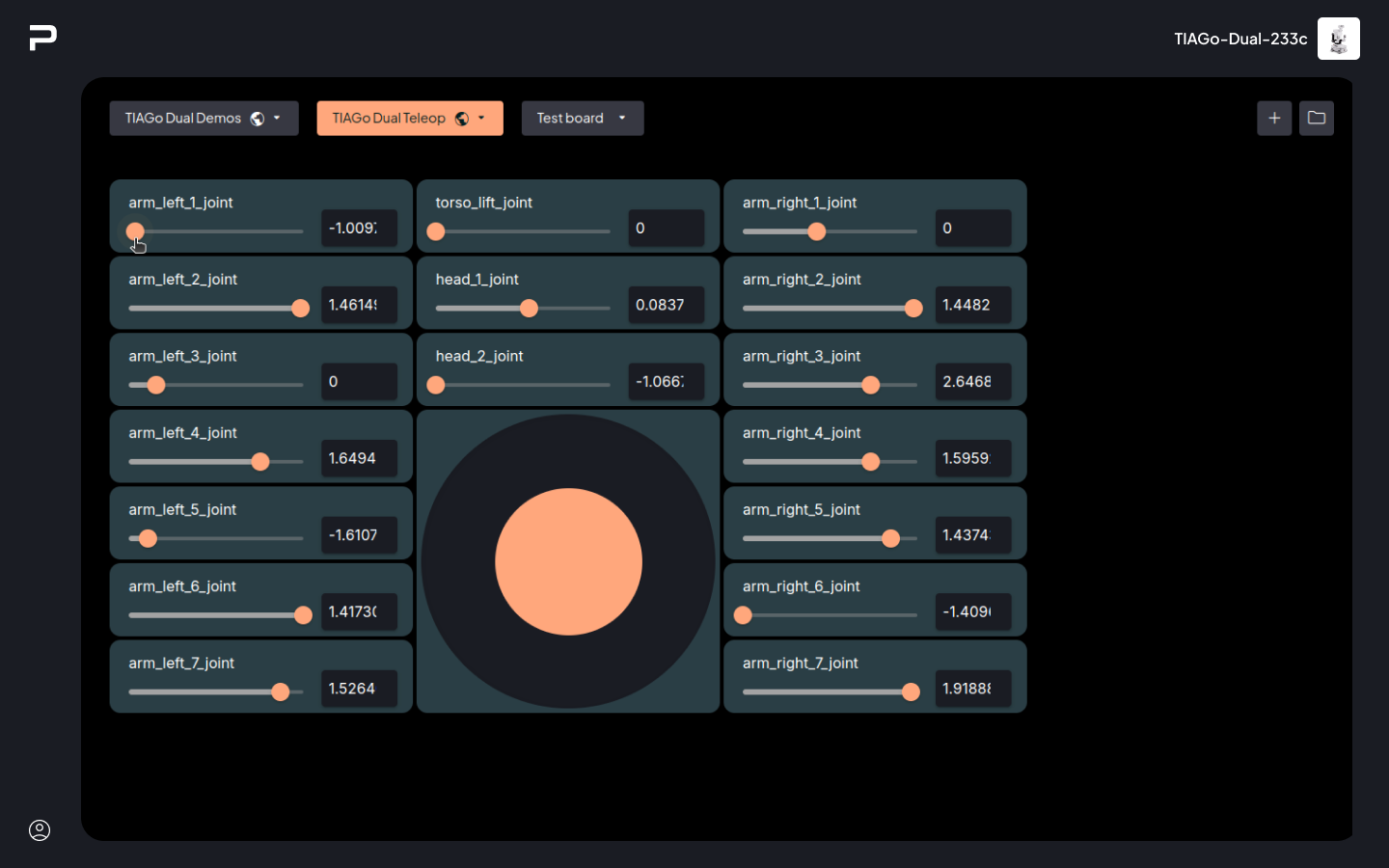
Figure 11: Joint Control Widget Example
Text to Speech
The Text To Speech Widget allows the user to write a sentence dynamically and have it said by the robot. The sentence can be written in the main area, and the language selected on the dropdown below.
The Say button will trigger the utterance of the sentence as is. It will switch to a Stop button which can be used to stop the speech early.
The Text to Speech Widget has one configurable property:
- Default Language - language that will be chosen by default on the widget (it can be changed dynamically as well).
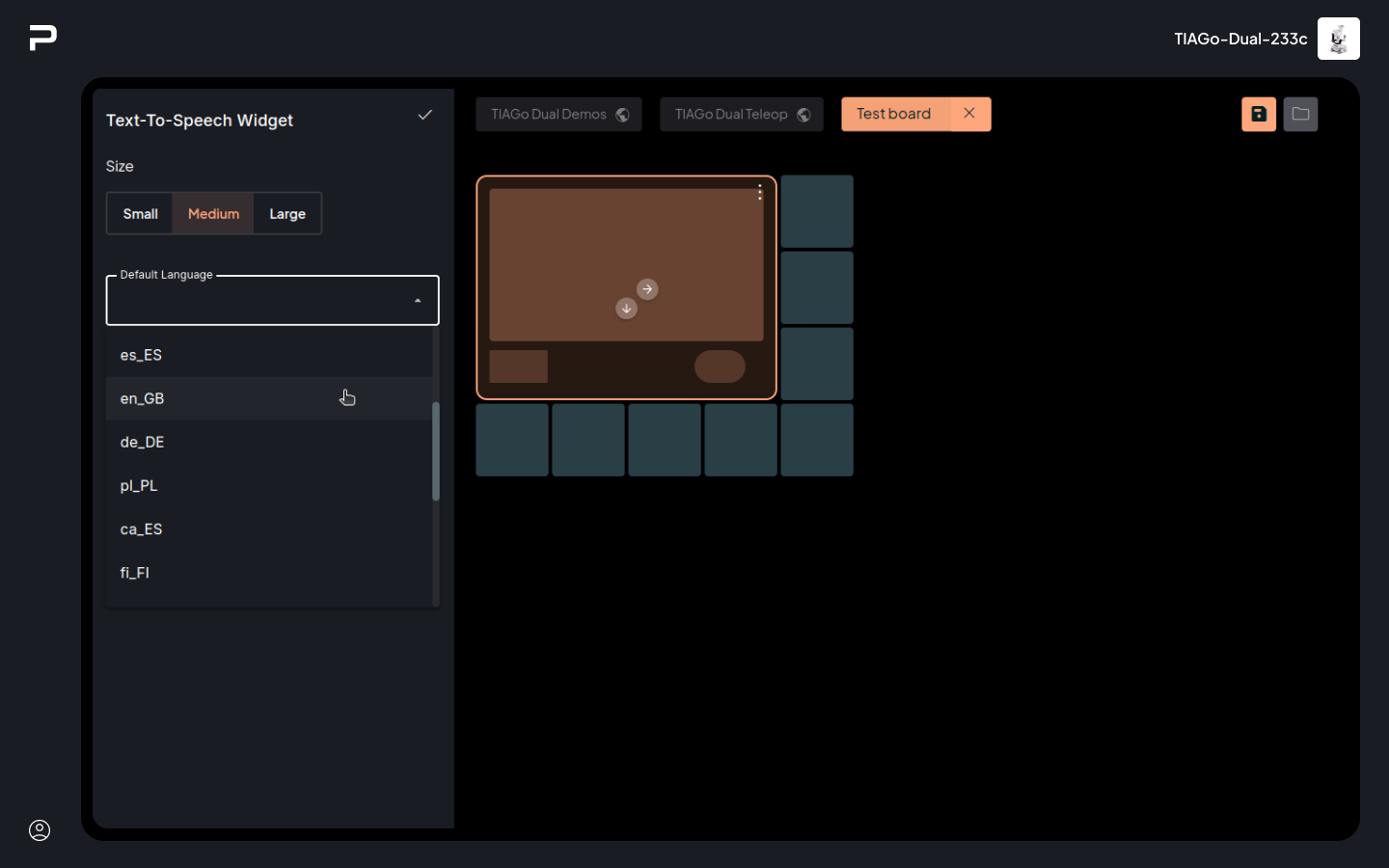
Figure 12: Text to Speech Edit Section
3D Pose
The 3D pose widget displays the robot’s pose based on the feedback of the joints.
This widget has no special configuration options.
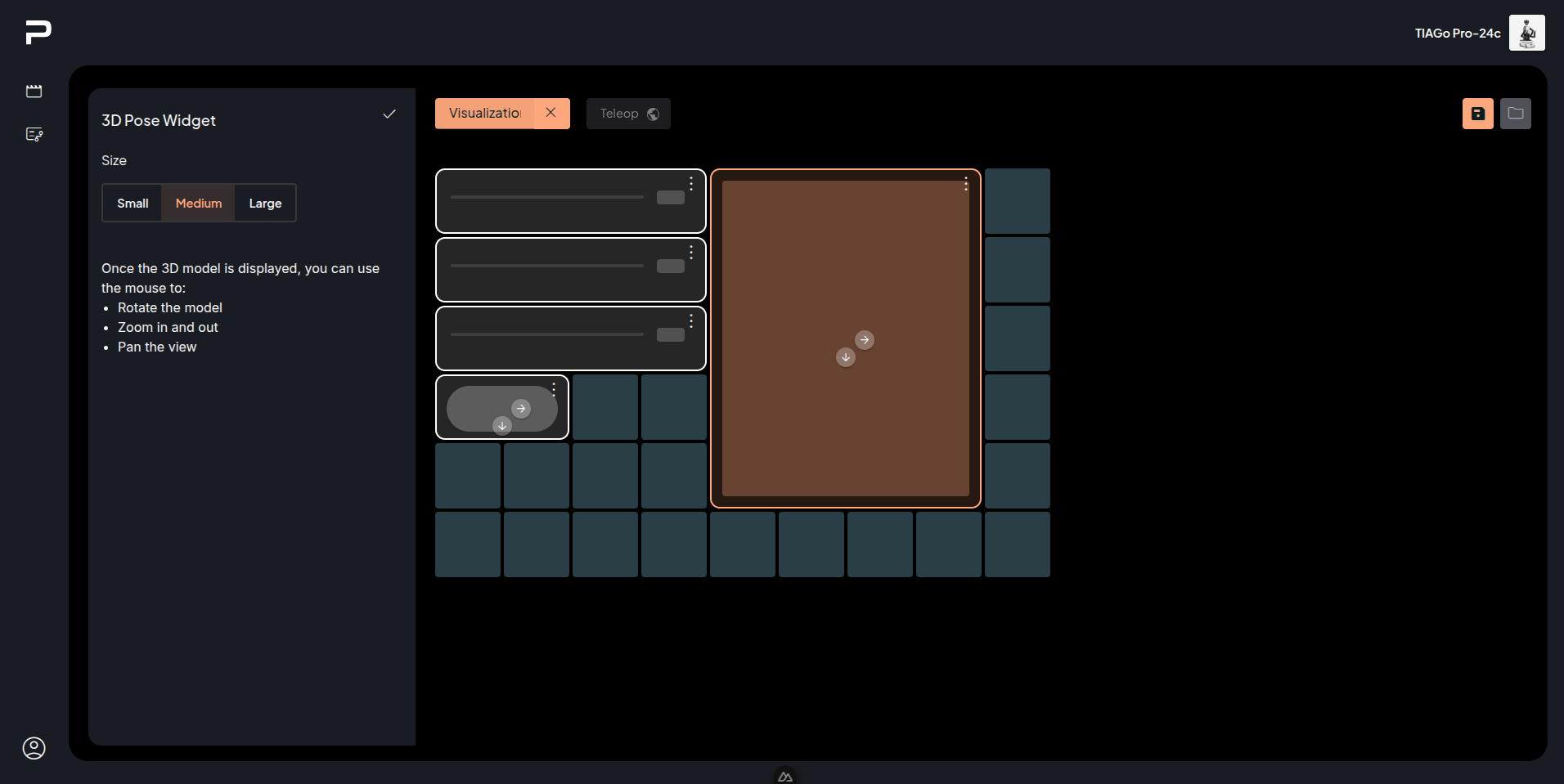
Figure 13: 3D Pose Widget Edit Section
Interacting with the Widget using the mouse:
-
Left click and drag to rotate
-
Wheel to zoom in and zoom out
-
Right click and drag to pan.
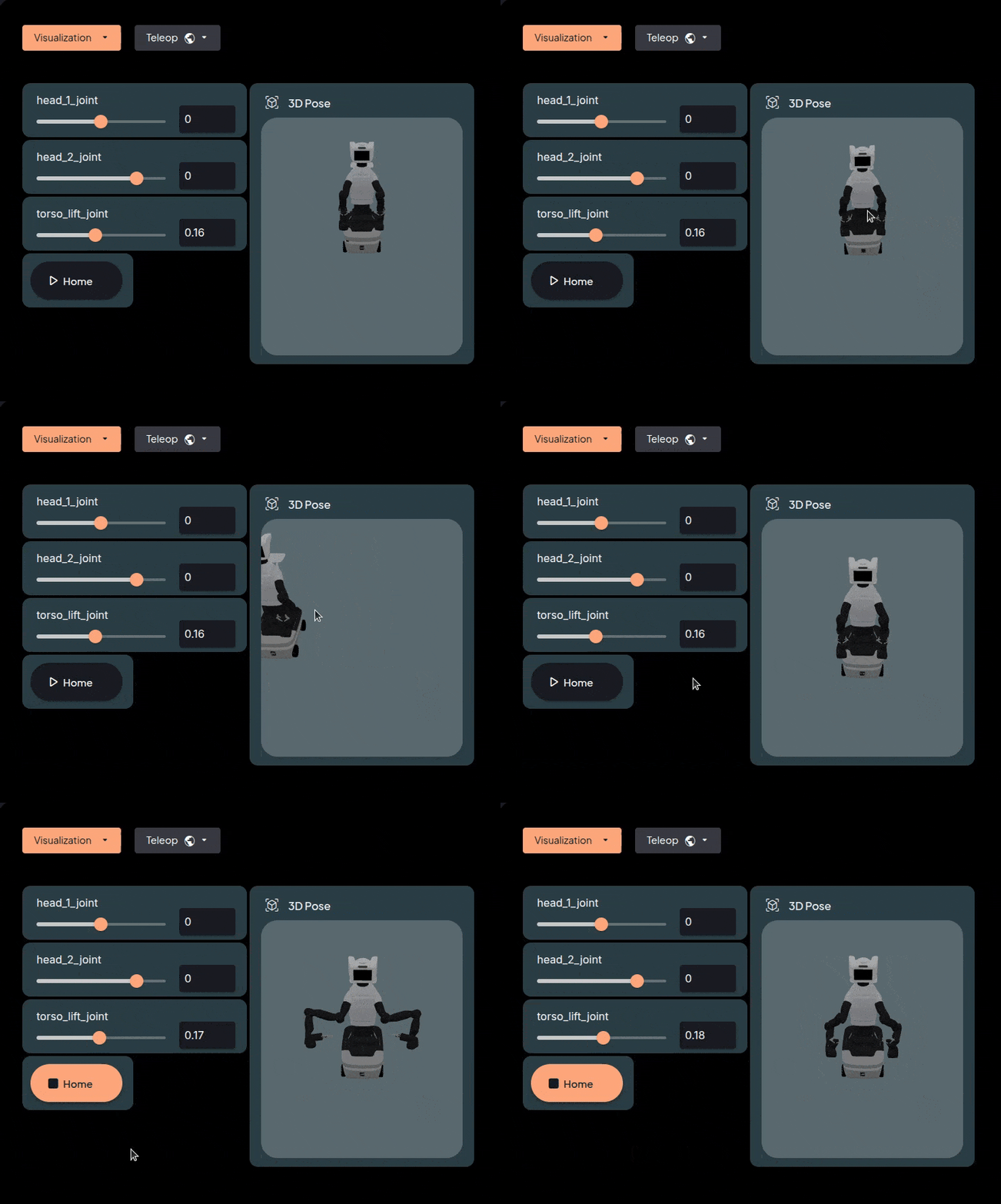
Figure 14: 3D Pose Widget Example
Topic Display
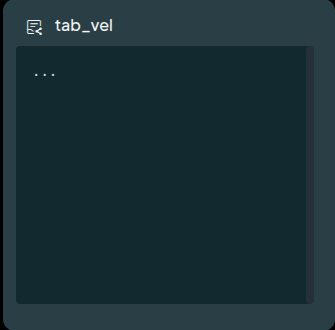
Figure 15: Topic Display Widget Text Area
The Topic Display Widget displays the latest message received on the selected ROS topic.
The topic display widget has three configurable properties:
-
Label: Name displayed by the widget.
-
Topic: the ROS topic to display
-
Type: the ROS message type for that topic.
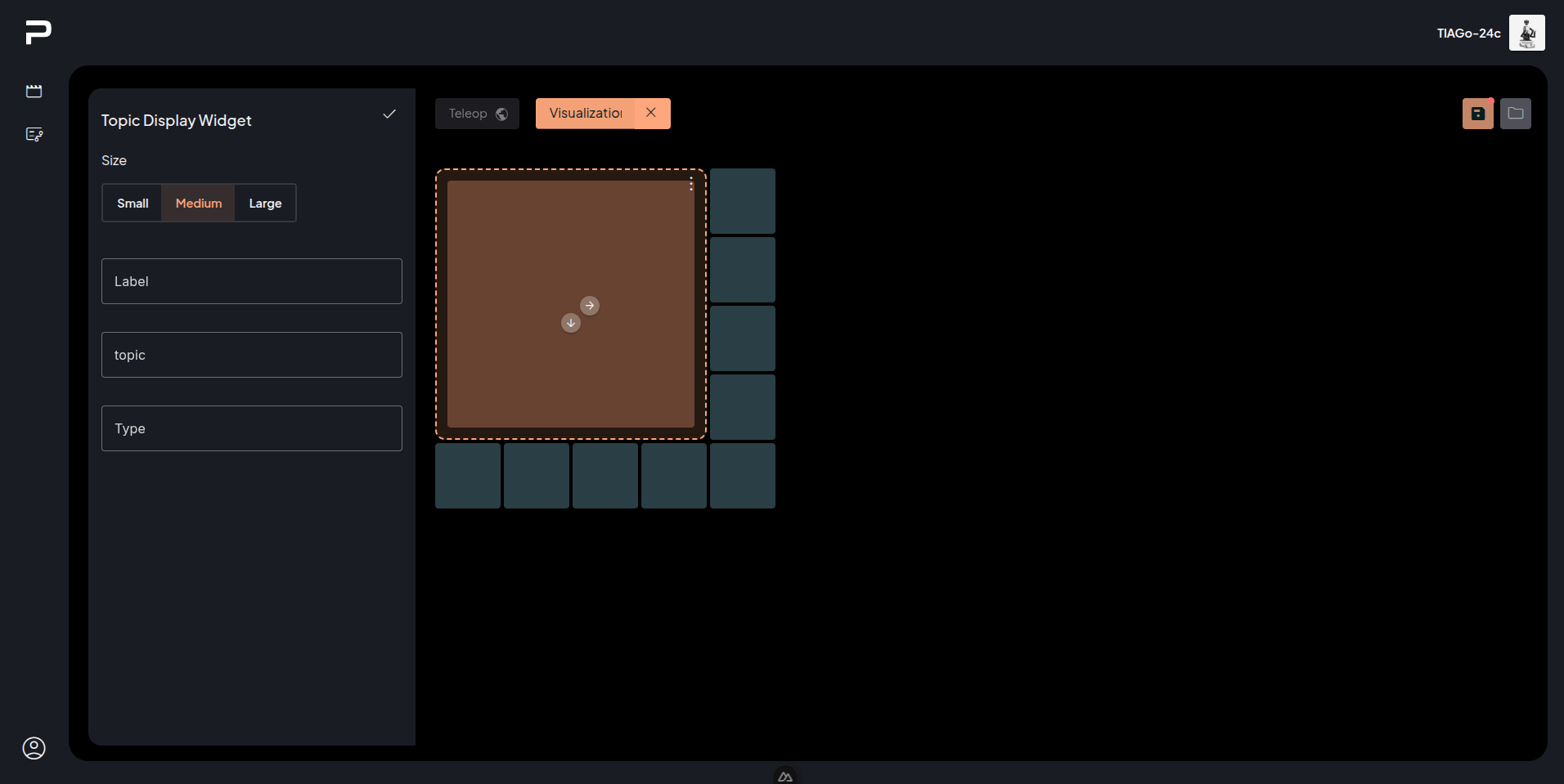
Figure 16: Topic Display Widget Edit Section
Below is an example of the /tab_vel topic with the type geometry_msgs/msg/Twist.
Note that, while there was no message received on that topic, it shows an ellipsis.
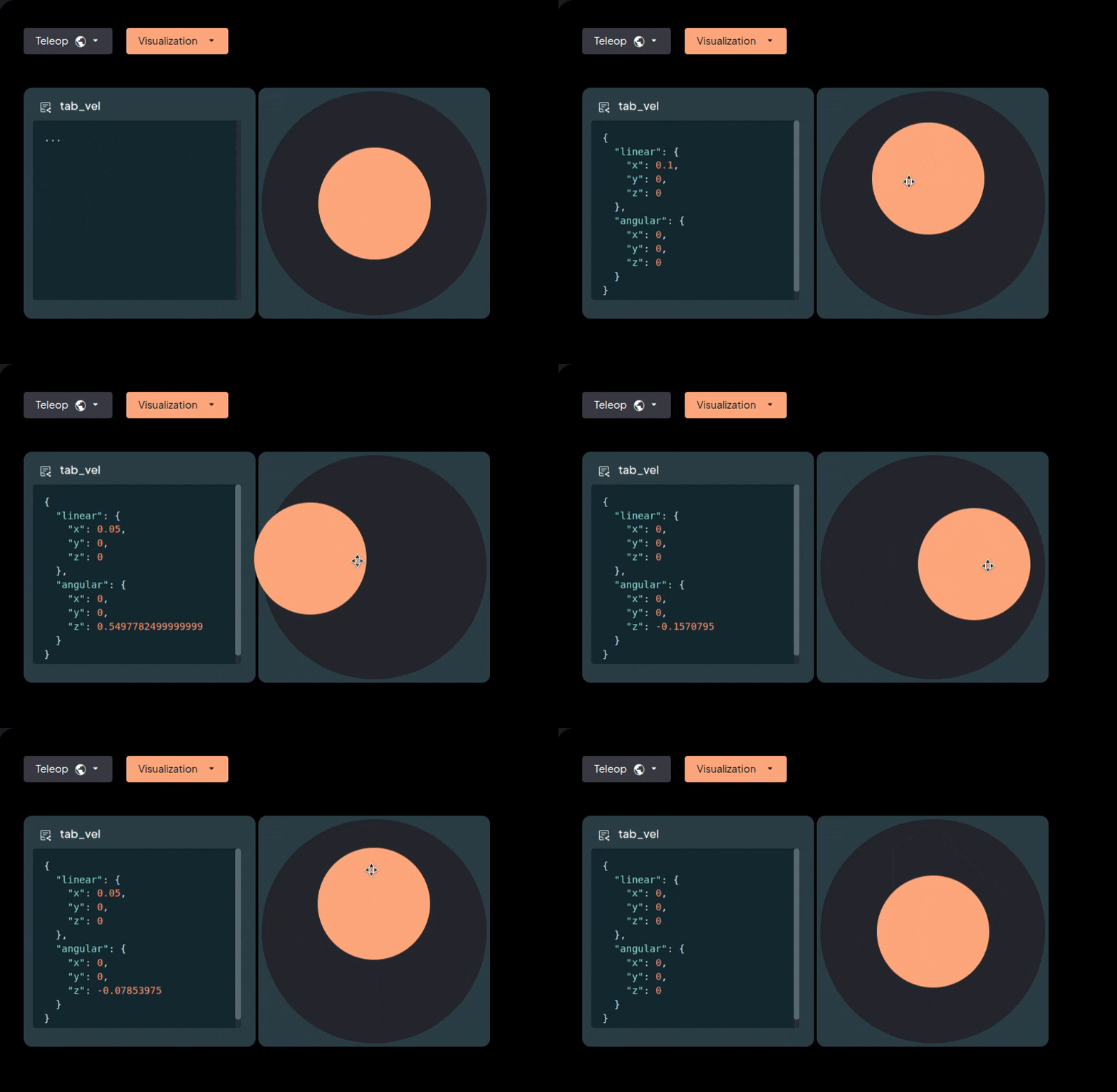
Figure 17: Topic Display Widget Example
Bash Terminal
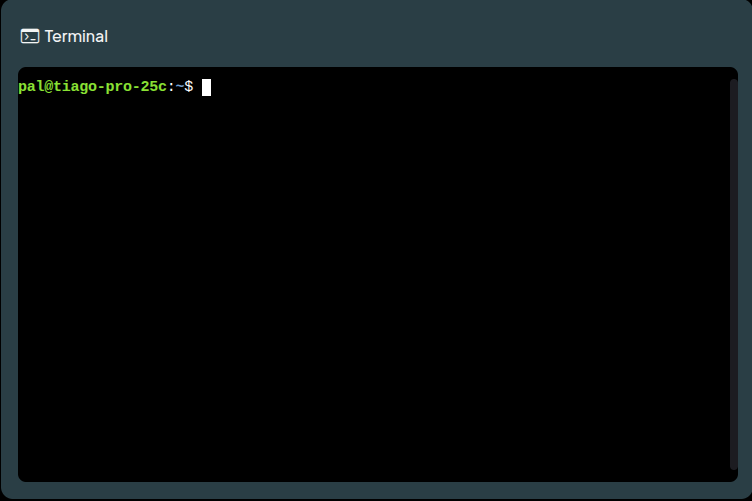
Figure 18: Bash Terminal Widget
The Bash Terminal widget spawns and emulates a terminal process, allowing interactive command and process execution on the robot.
This widget has no special configuration options.
When the terminal first appears on the board, it is inactive. Clicking on the terminal establishes a connection.
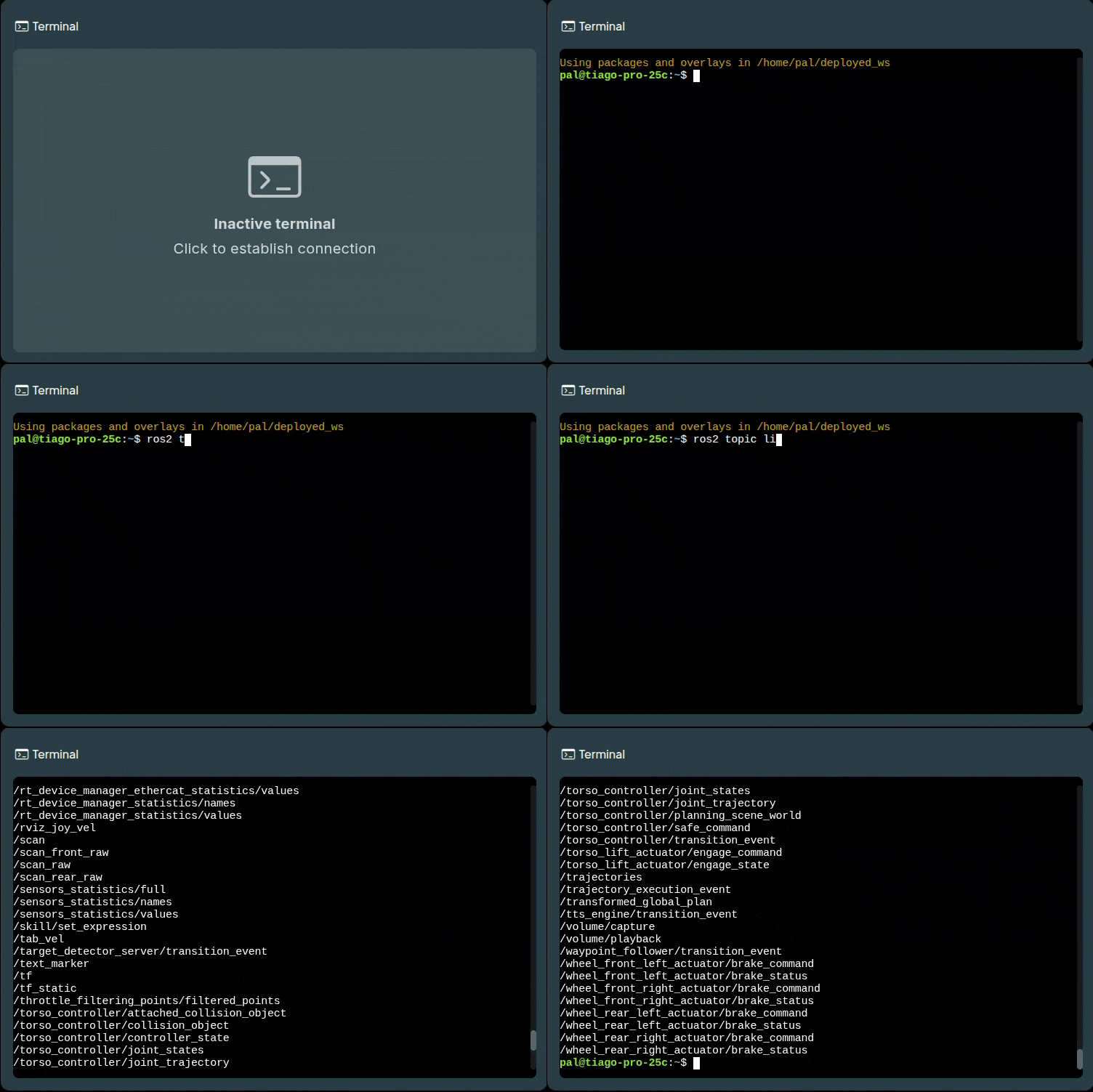
Figure 19: Bash Terminal Widget Example
Keyboard Shortcuts for the Terminal:
-
Ctrl + Insert: Copy from the terminal.
-
Shift + Insert: Paste into the terminal.
NOTE:
Going to a different board or app will disconnect the terminal.
iFrame
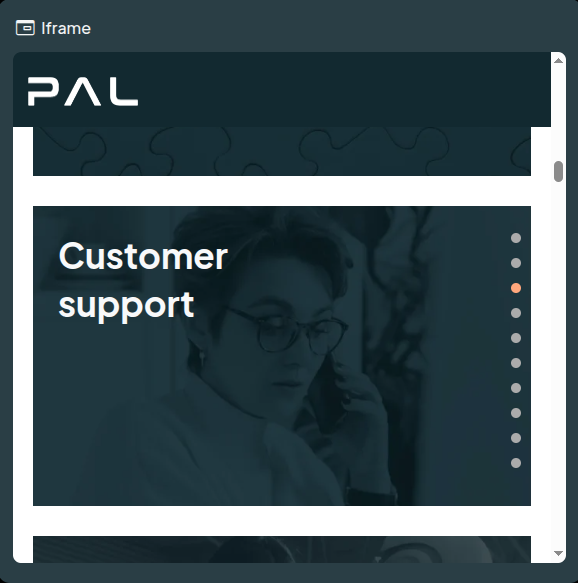
Figure 20: iFrame Widget
The iFrame Widget displays an inline iFrame using a custom source. This allows the widget to display another website. The iFrame widget has one configurable property:
- Source: desired website URL to be displayed.
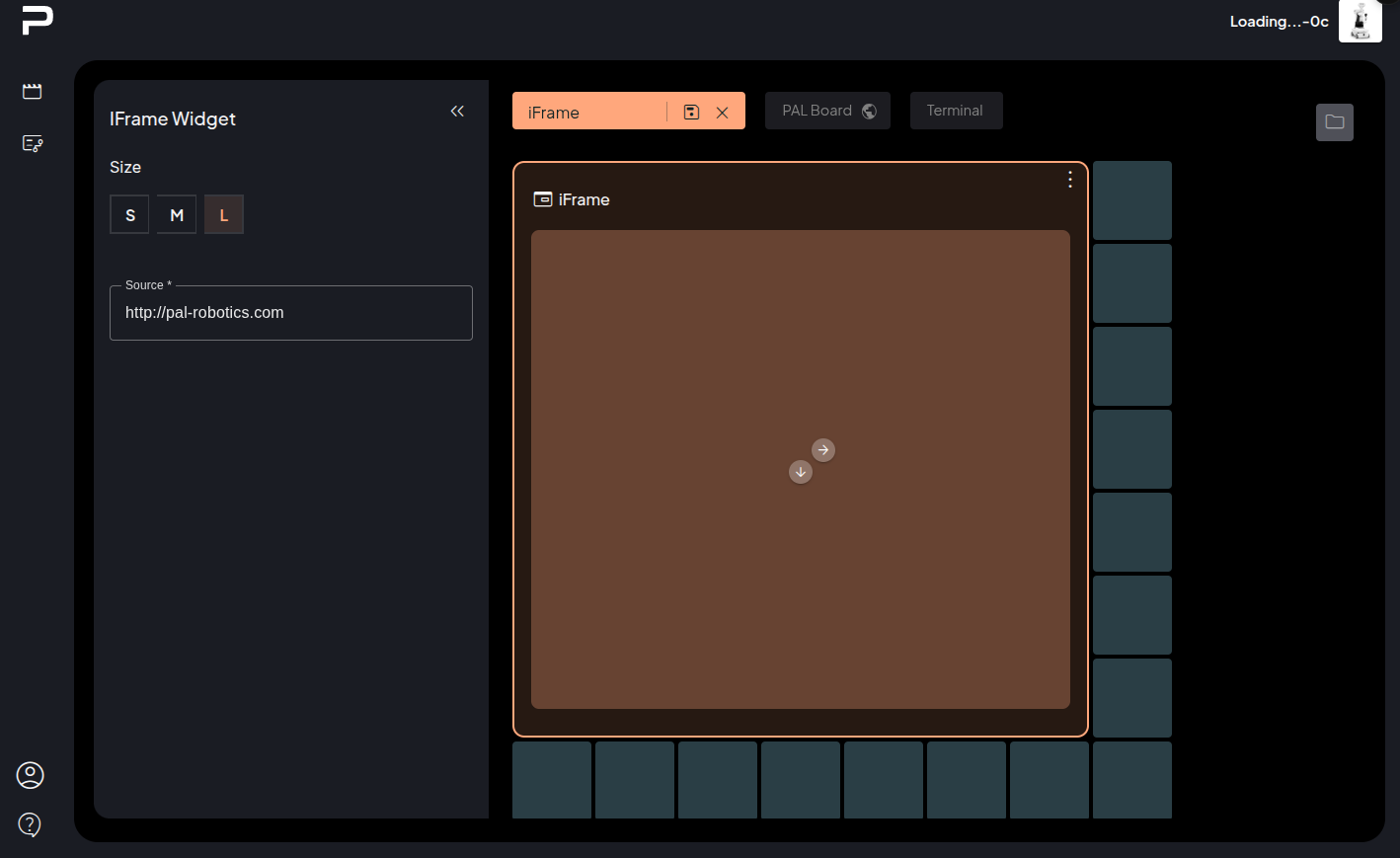
Figure 21: iFrame Widget Edit Section
Below is an example of the iFrame widget displaying the Pal Robotics website.
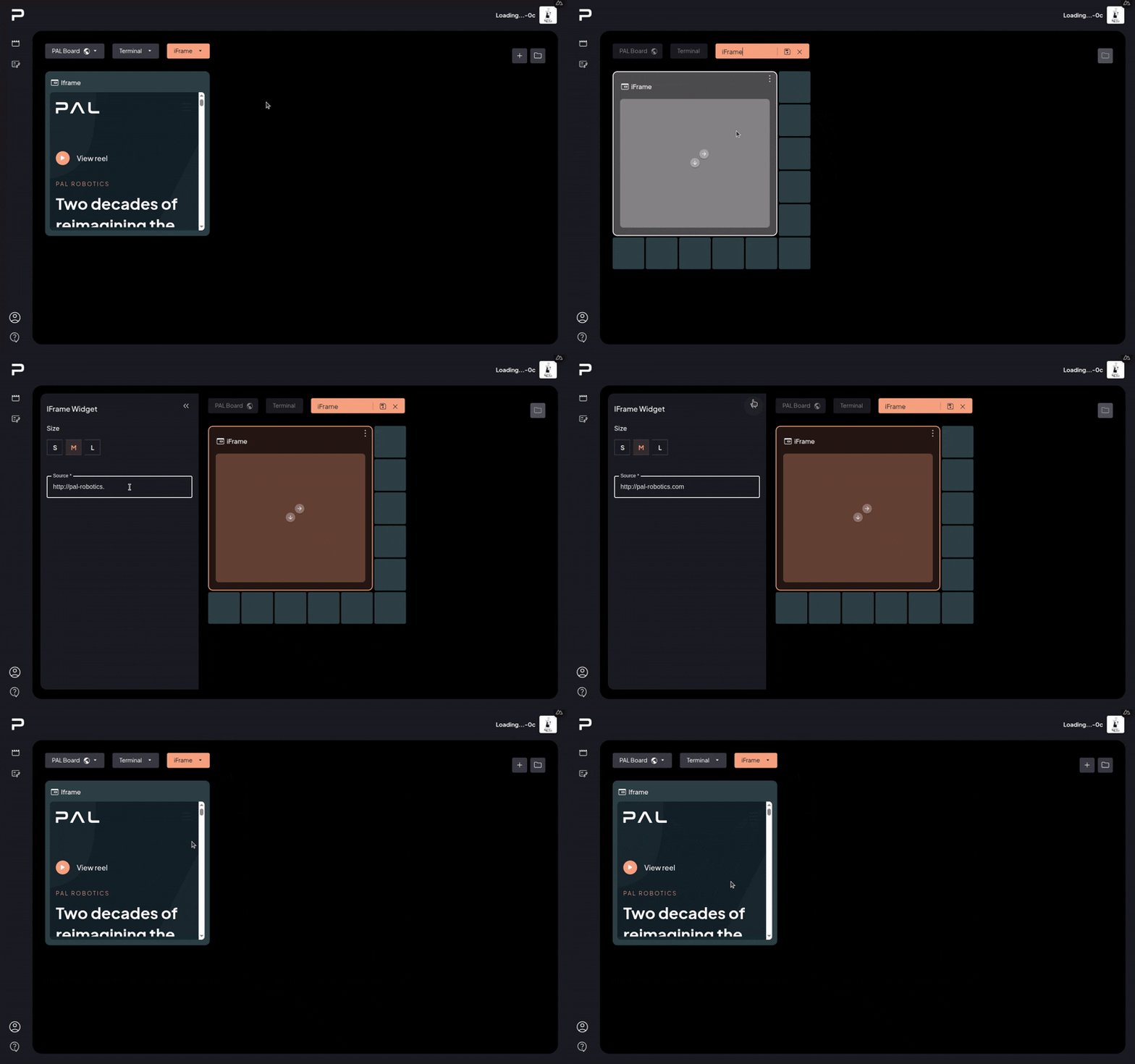
Figure 22: iFrame Widget Example
NOTE:
The source must explicitly allow embedding within an iFrame; otherwise, the widget will fail to load, resulting inan error “source refused to connect”