Send a joint space command with the TSID controller
This is a step-by-step tutorial to use one of the TSID controllers. You will see how to load, start and command a joint reference.
Step 1: Start the simulation of TIAGo Pro
In the PAL Development docker, start the robot simulation
ros2 launch tiago_pro_gazebo tiago_pro_gazebo.launch.py world_name:=empty
Once started the robot will be in home position, see Figure 1.
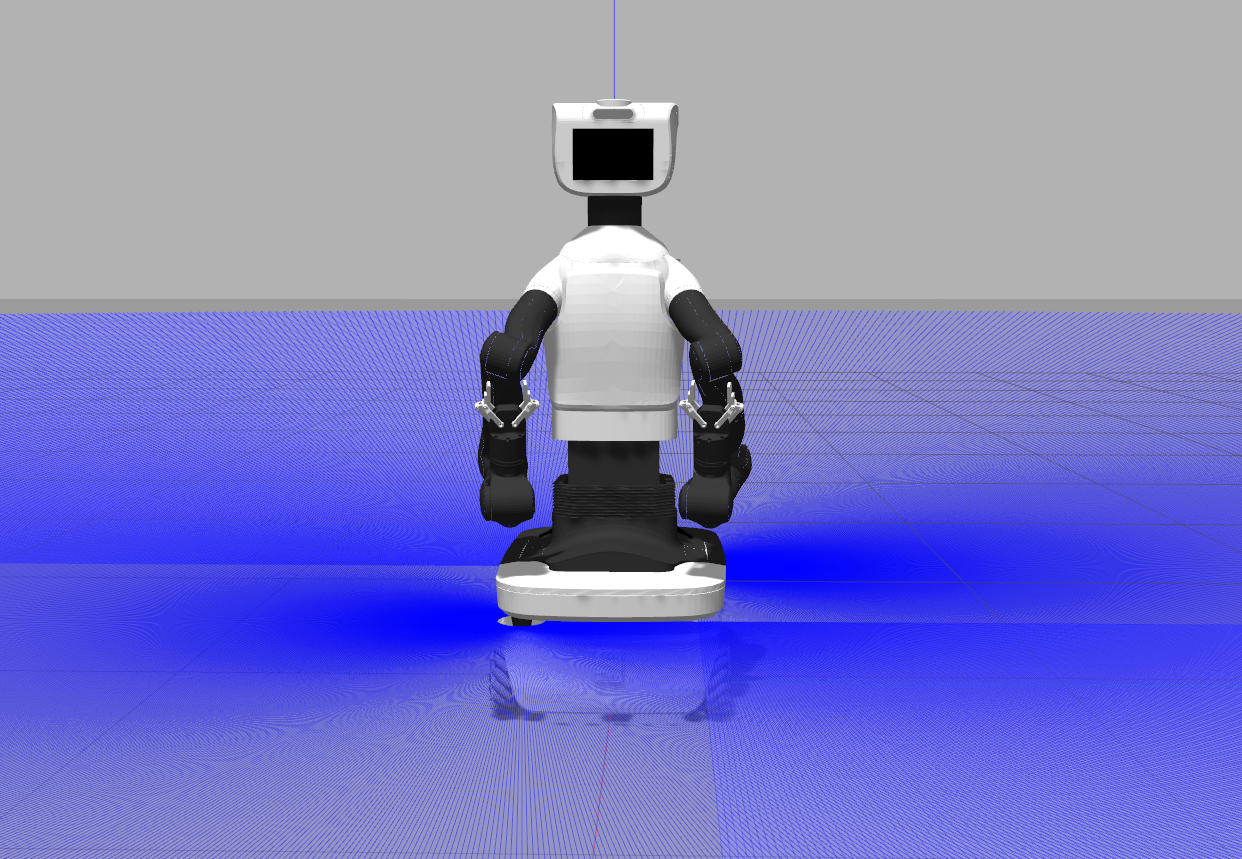
Figure 1: Robot simulated in home position.
Step 2: Load and activate the TSID Controllers
The TSID controllers are not loaded by default. The procedure to activate them consists of two steps. First load the TSID default controllers by doing:
ros2 launch tiago_pro_controller_configuration tsid_default_controllers.launch.py use_sim_time:=True
This will load the joint and Cartesian space controllers in position and velocity interface. Note that here we have used use_sim_time:=True, that loads You can check that the controllers are loaded by doing
ros2 control list_controllers
You should see something like in Figure 2.
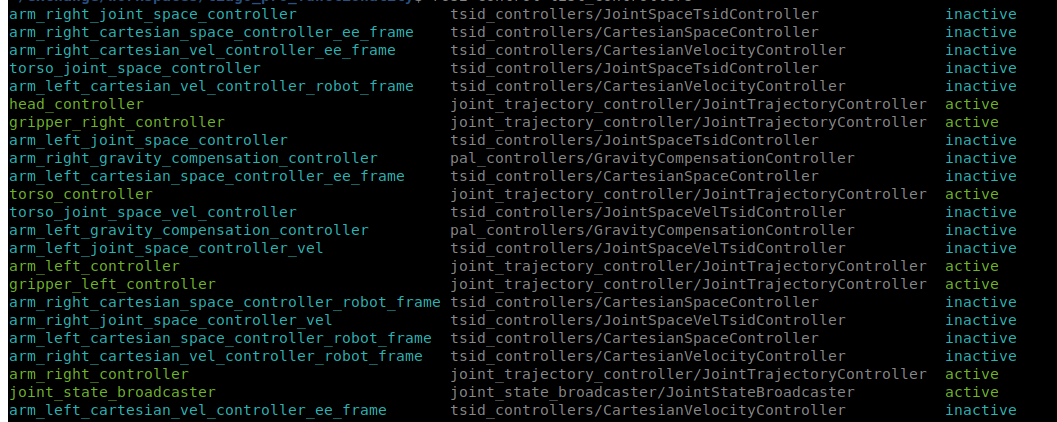
Figure 2: List controllers with TSID controllers.
Activate the joint space controller for the right arm by doing the following
ros2 control switch_controllers --deactivate arm_right_controller --activate arm_right_joint_space_contoller
Note that this last command consists of deactivating the default controller (the Joint Trajectory Controller of the right arm) and activating the TSID counterpart.
Step 3: Send a joint space command
The arm_right_joint_space_contoller exposes a topic /arm_right_joint_space_contoller/joint_space_cmd of type std_msgs:msg::Float64MultiArray. One can put the right arm to zero by publishing
ros2 topic pub /arm_right_joint_space_controller/joint_position_cmd std_msgs/msg/Float64MultiArray "data: [0.0, 0.0, 0.0, 0.0, 0.0, 0.0, 0.0]" --once
In Gazebo you should something similar as in Figure 3.
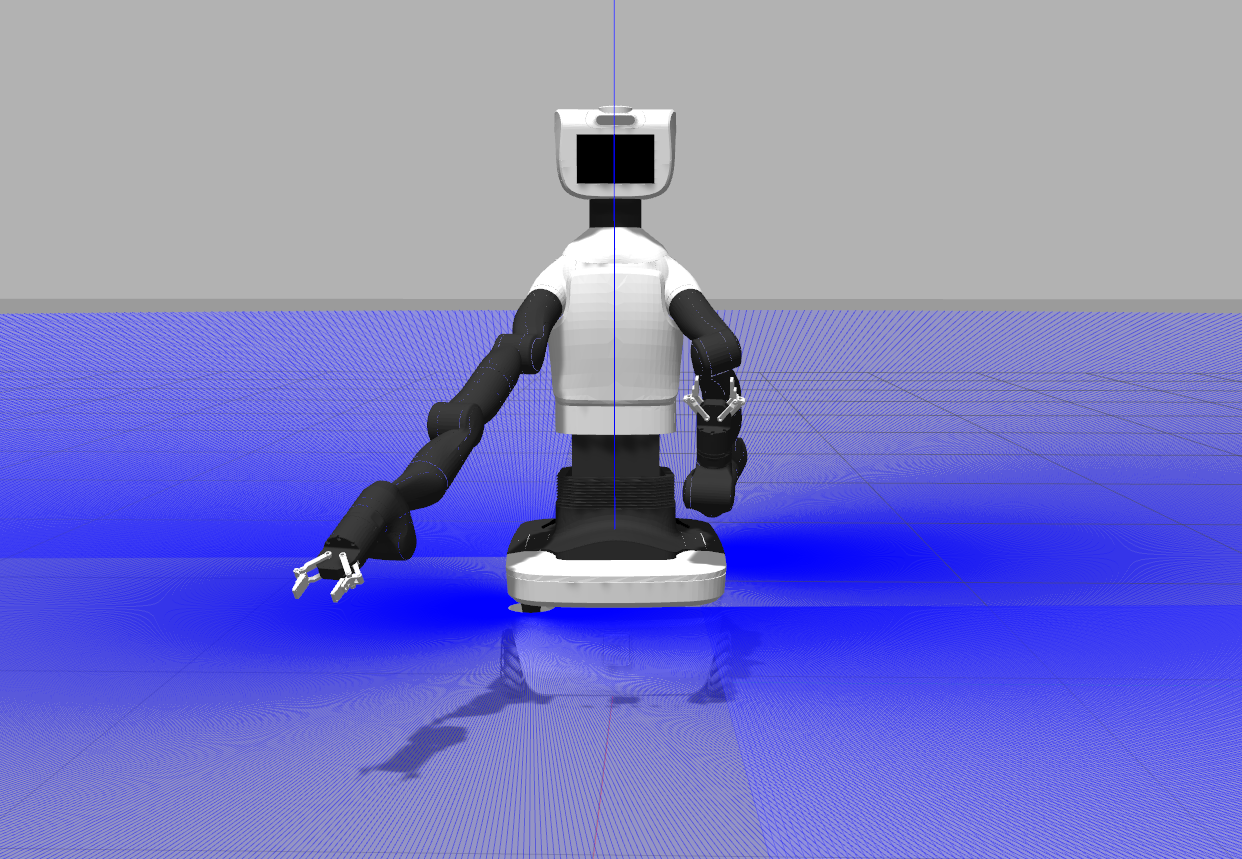
Figure 3: Robot simulated in zero right arm position.